Step 1: Check Cin7 Core Data
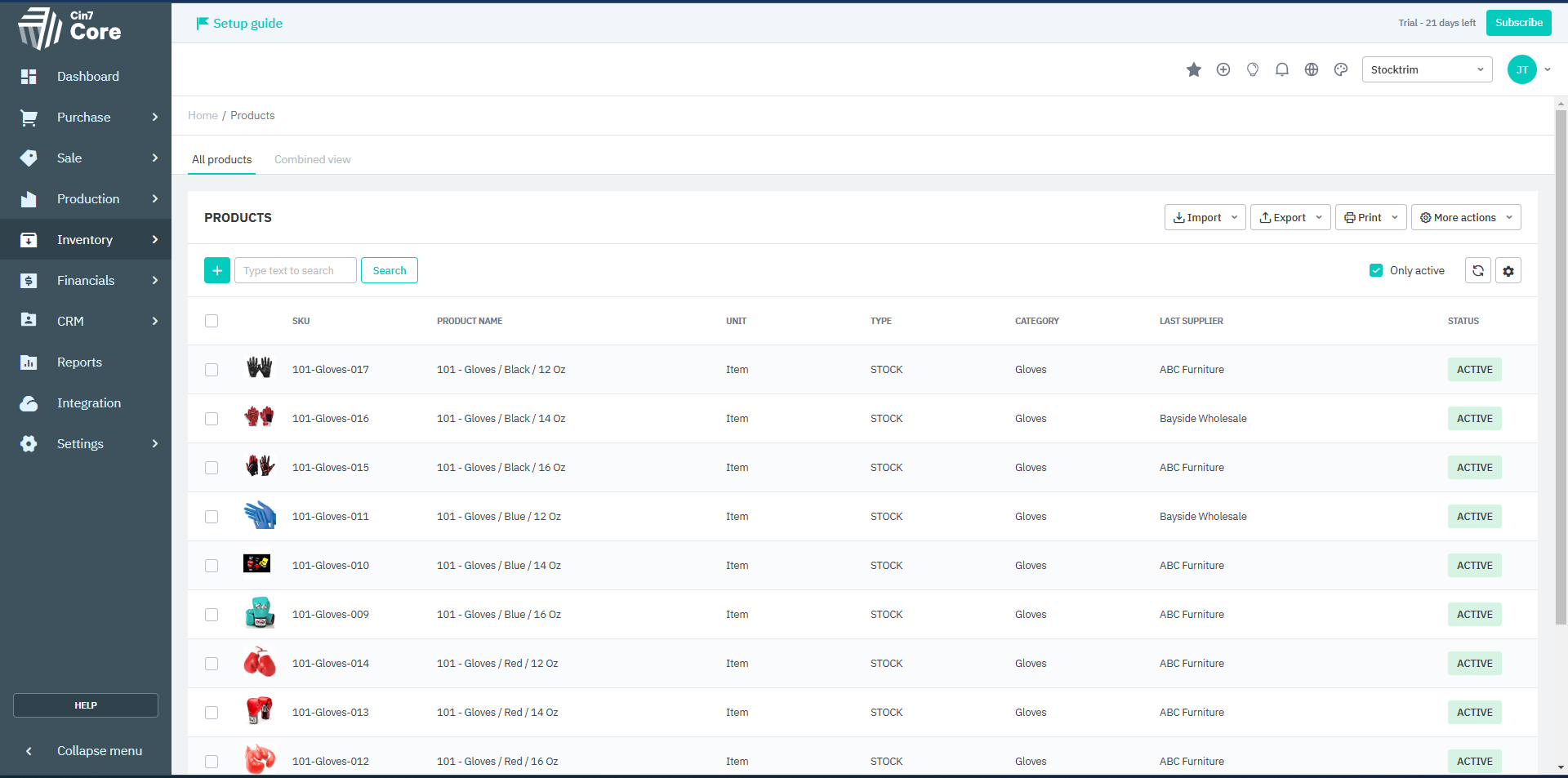
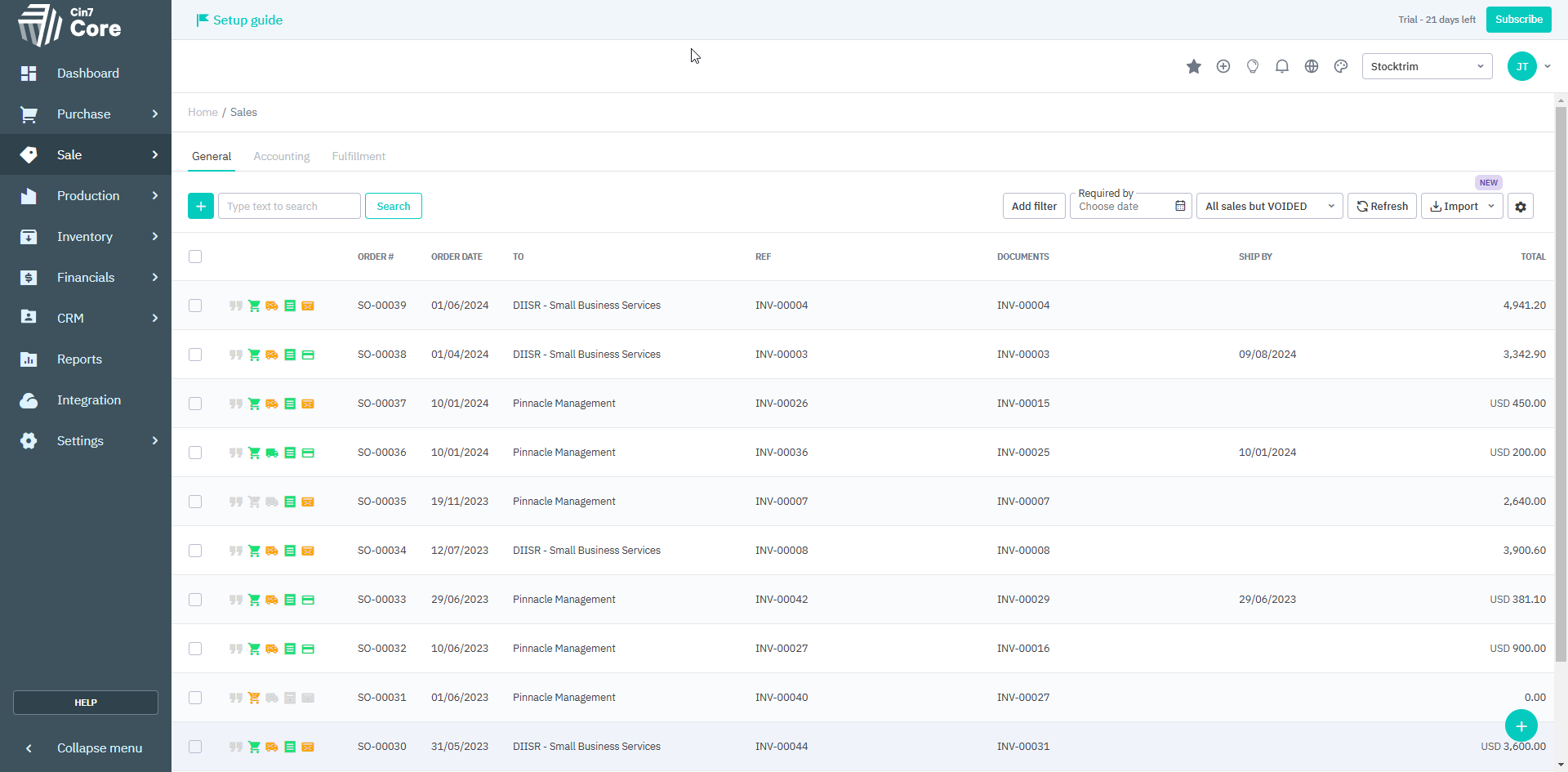
In your Cin7 Core account, ensure that your products list and sales history are up to date.
It helps if your inventory is tracked with current stock levels set, and pricing data up to date.
It helps if your inventory is tracked with current stock levels set, and pricing data up to date.
Step 2: Load data into StockTrim
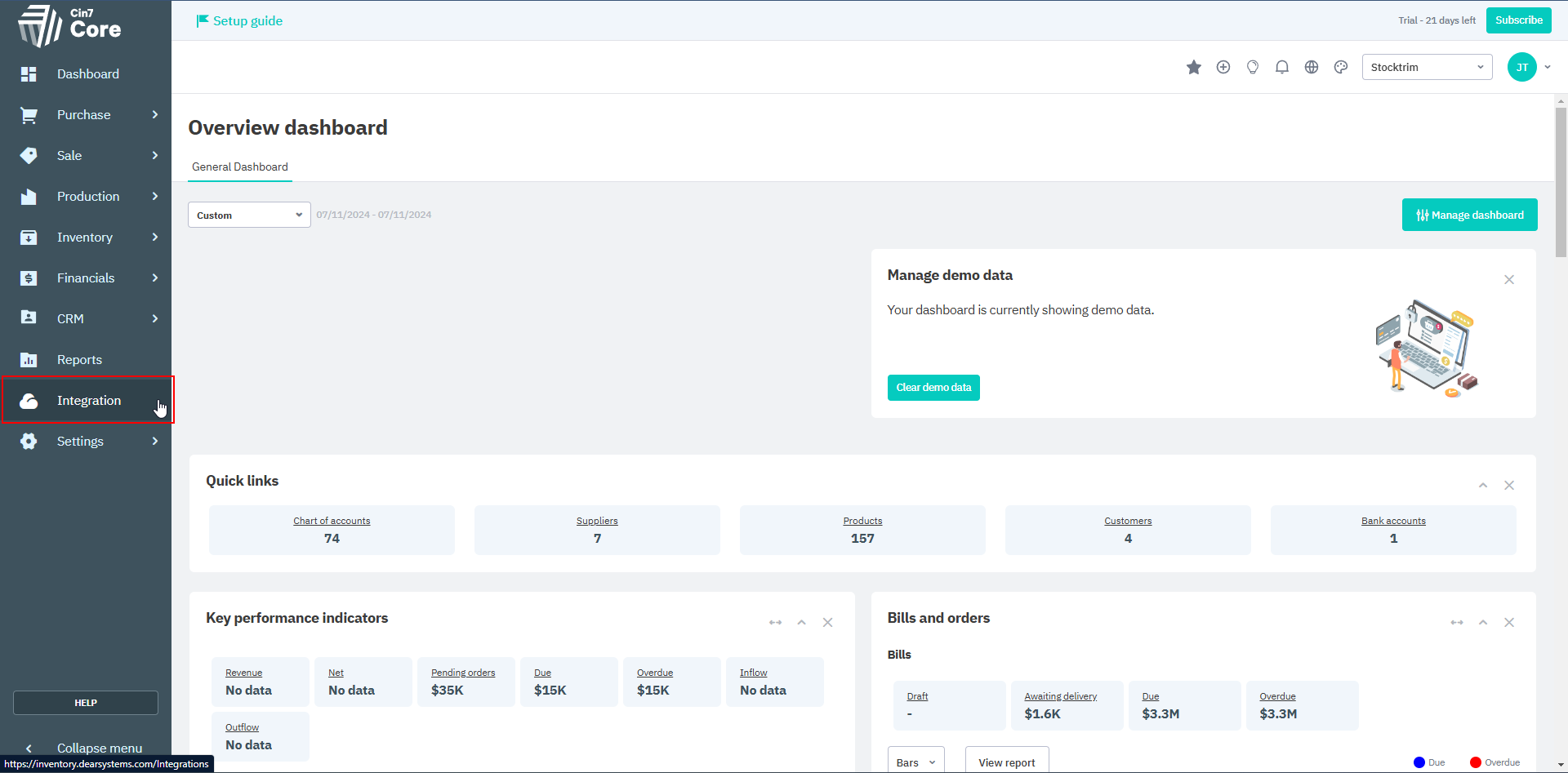
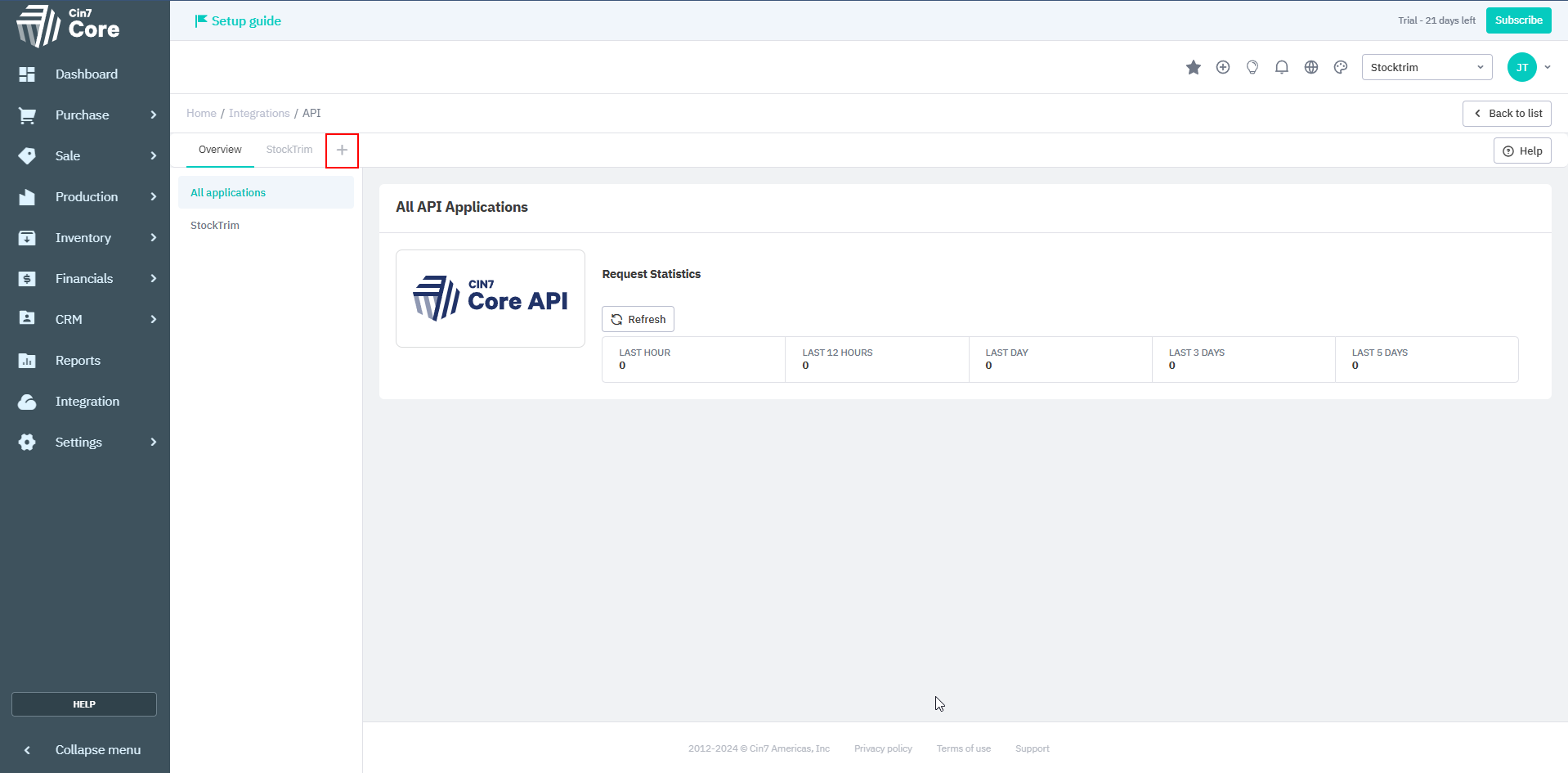
In Cin7 Core, log in as the administrator, and then select 'Integration' on the left navigation menu.
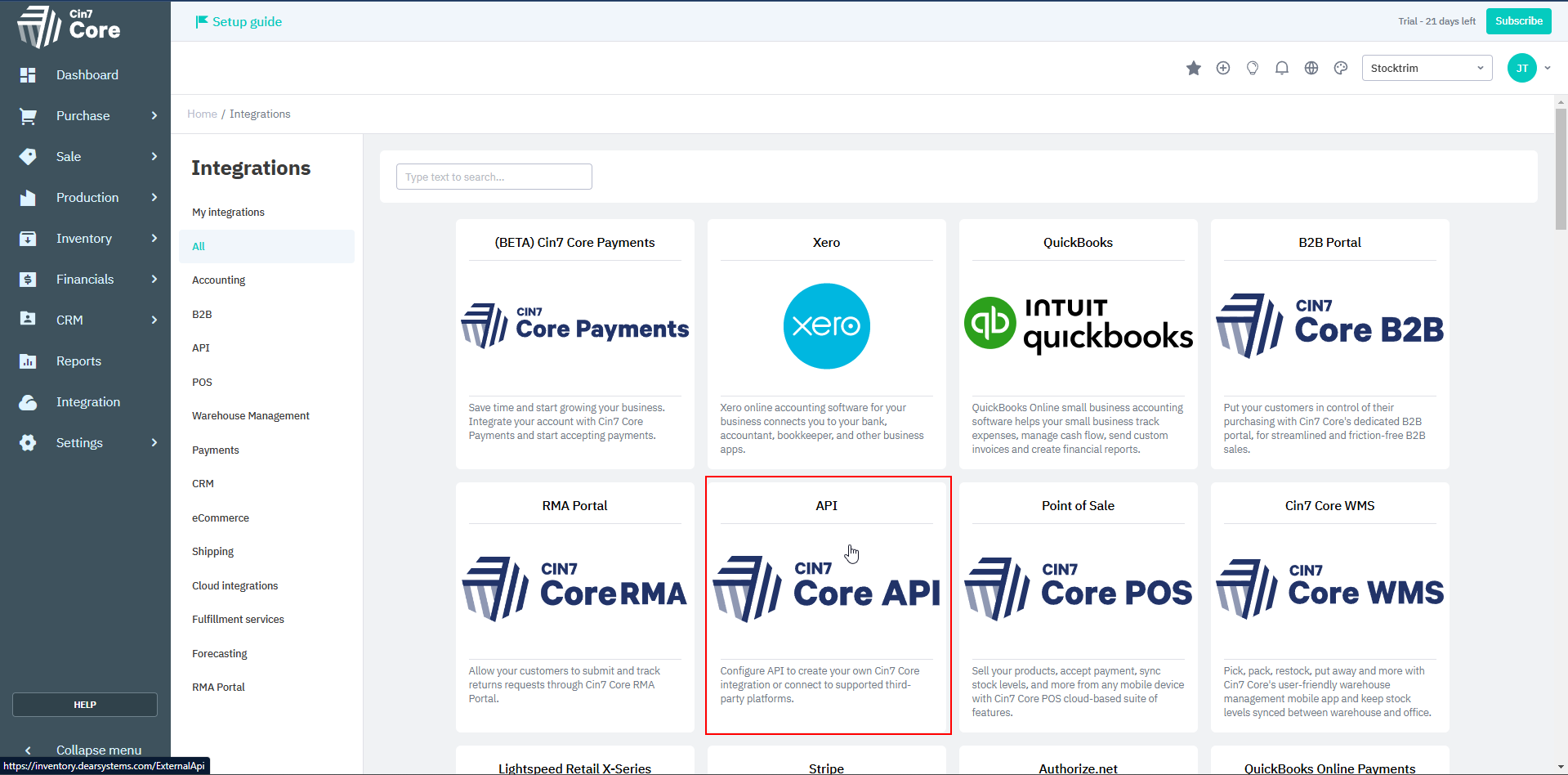
Then, select the 'Cin7 Core API' integration option
Then, next to 'Overview', click on '+' to add an API application
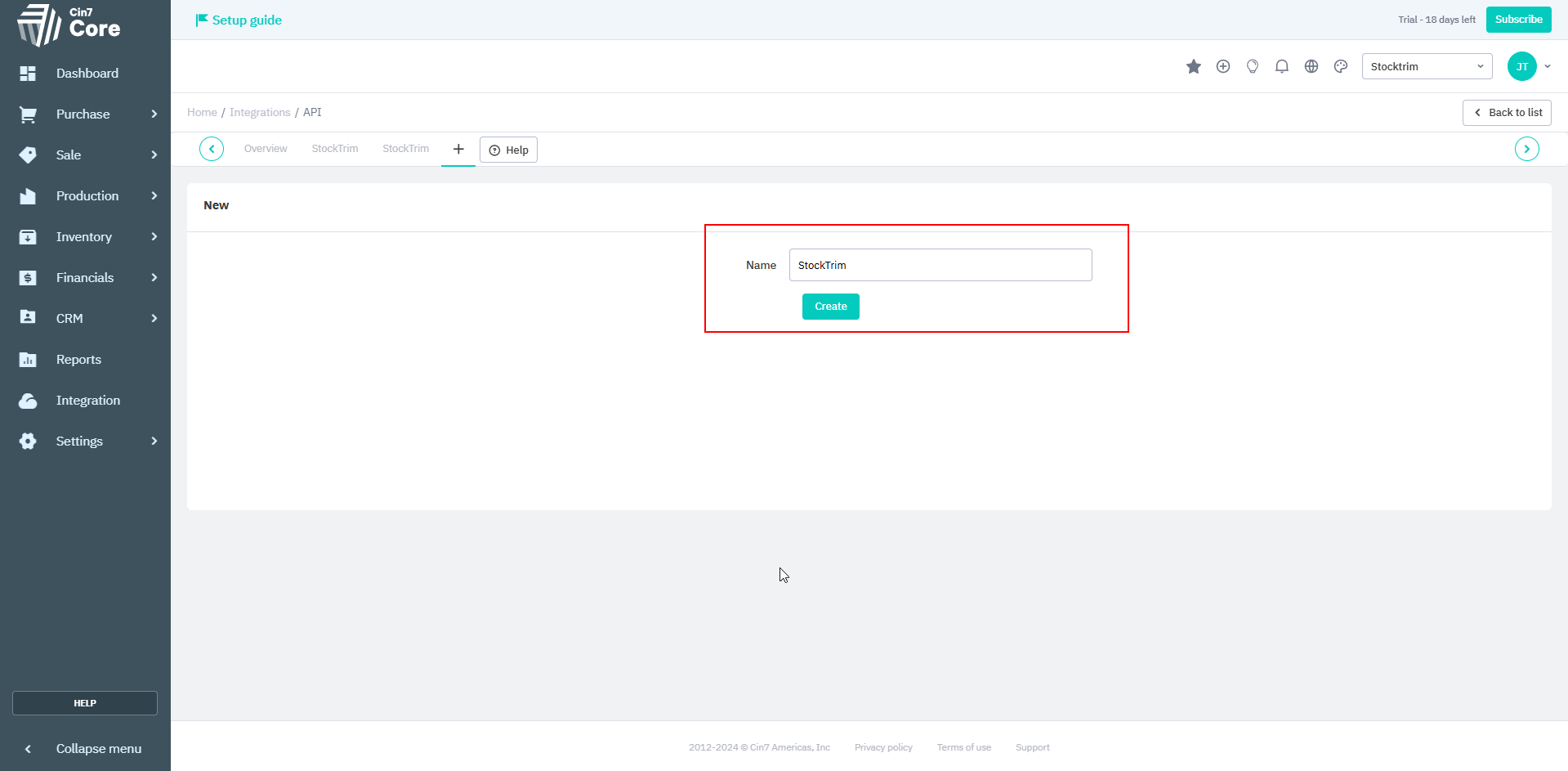
Enter a name for the API application (we recommend you use 'StockTrim') and click on 'Create'
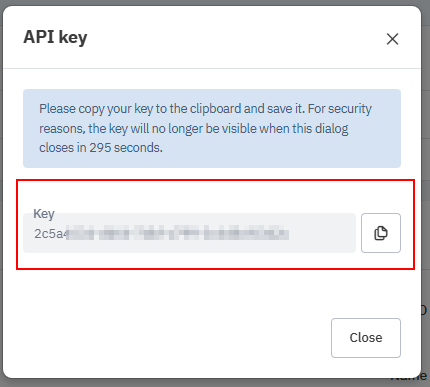
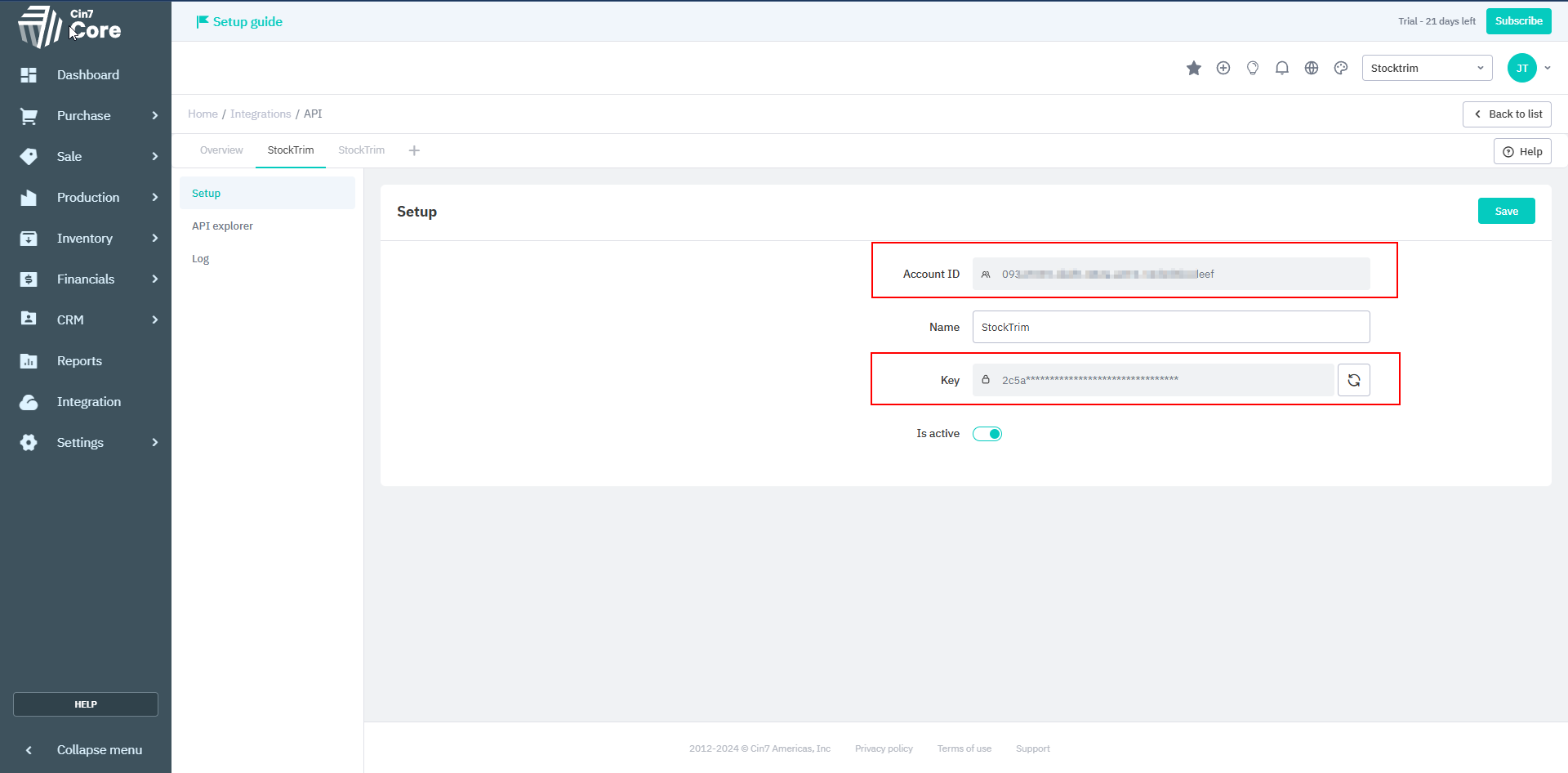
Cin7 Core will generate an Account ID and an Application Key (different from the values in the screenshot).
These will need to be copied into StockTrim.
Note that you are able to copy and paste these keys, even though the text boxes appear grayed-out.
Highlight the Account ID key, right click, then select copy. In StockTrim, paste it into the Account ID field.
Repeat for the (Application) Key.
These will need to be copied into StockTrim.
Note that you are able to copy and paste these keys, even though the text boxes appear grayed-out.
Highlight the Account ID key, right click, then select copy. In StockTrim, paste it into the Account ID field.
Repeat for the (Application) Key.
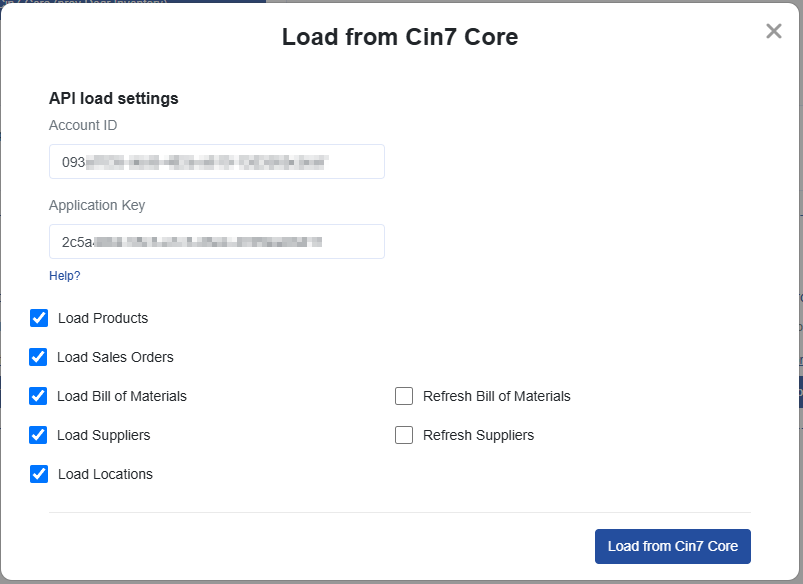
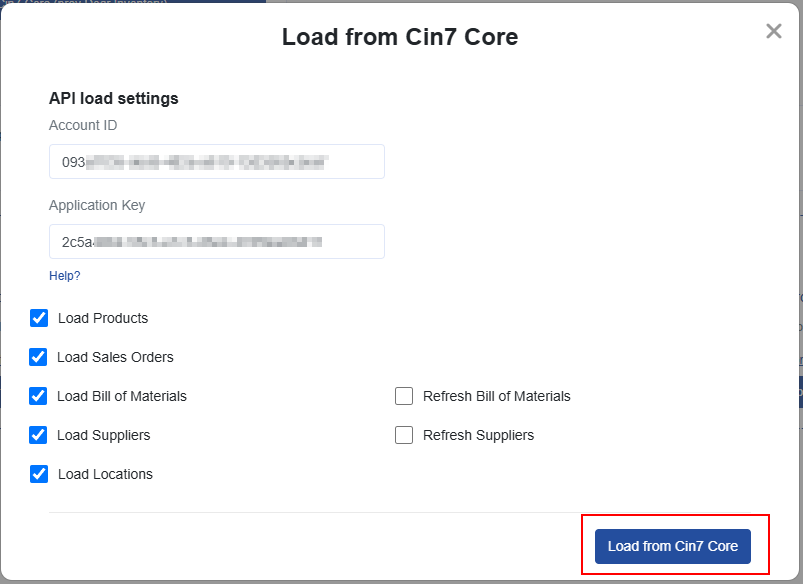
Finally, click 'Load From Cin7 Core'.
Step 3: Inventory status and order plans
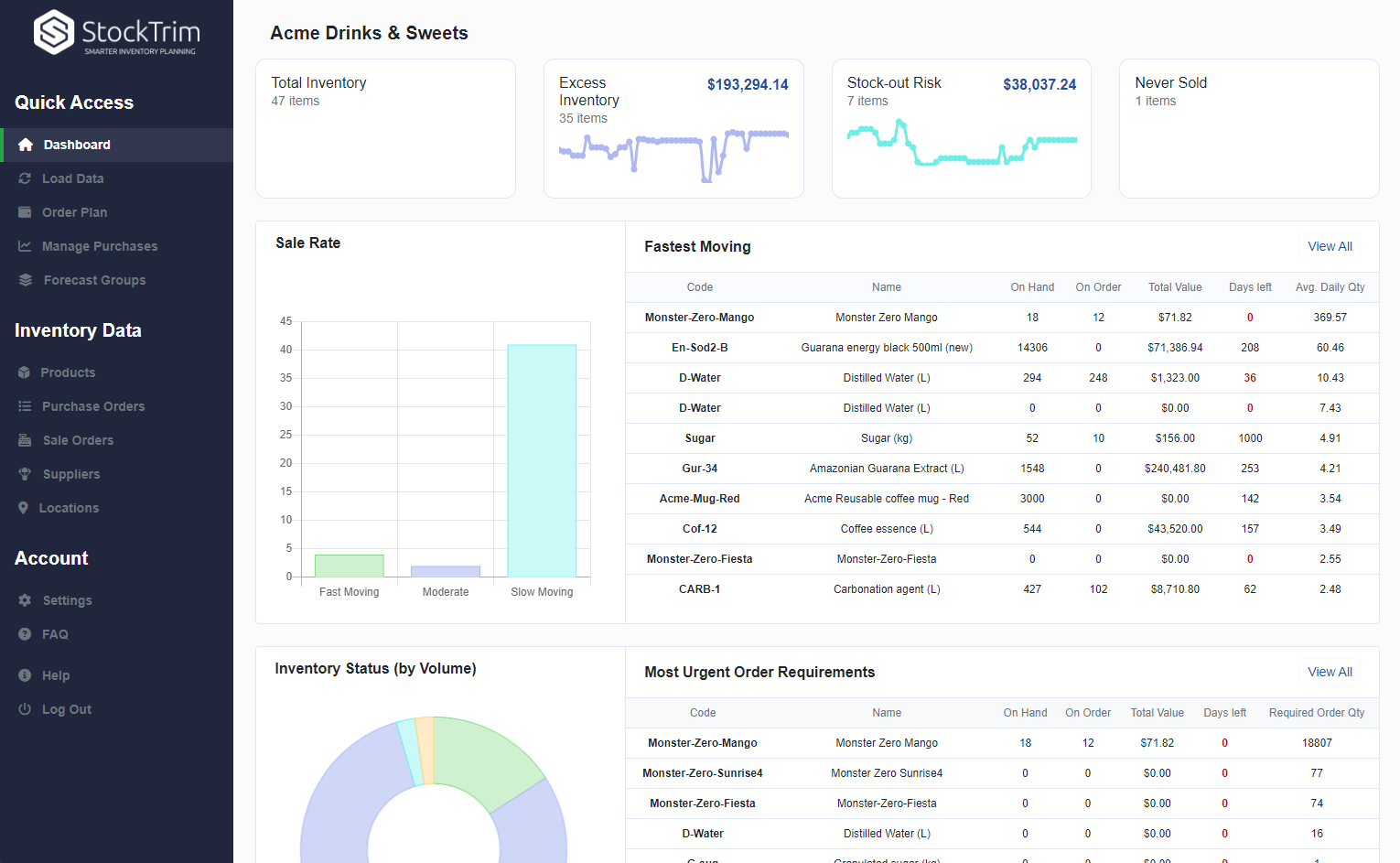
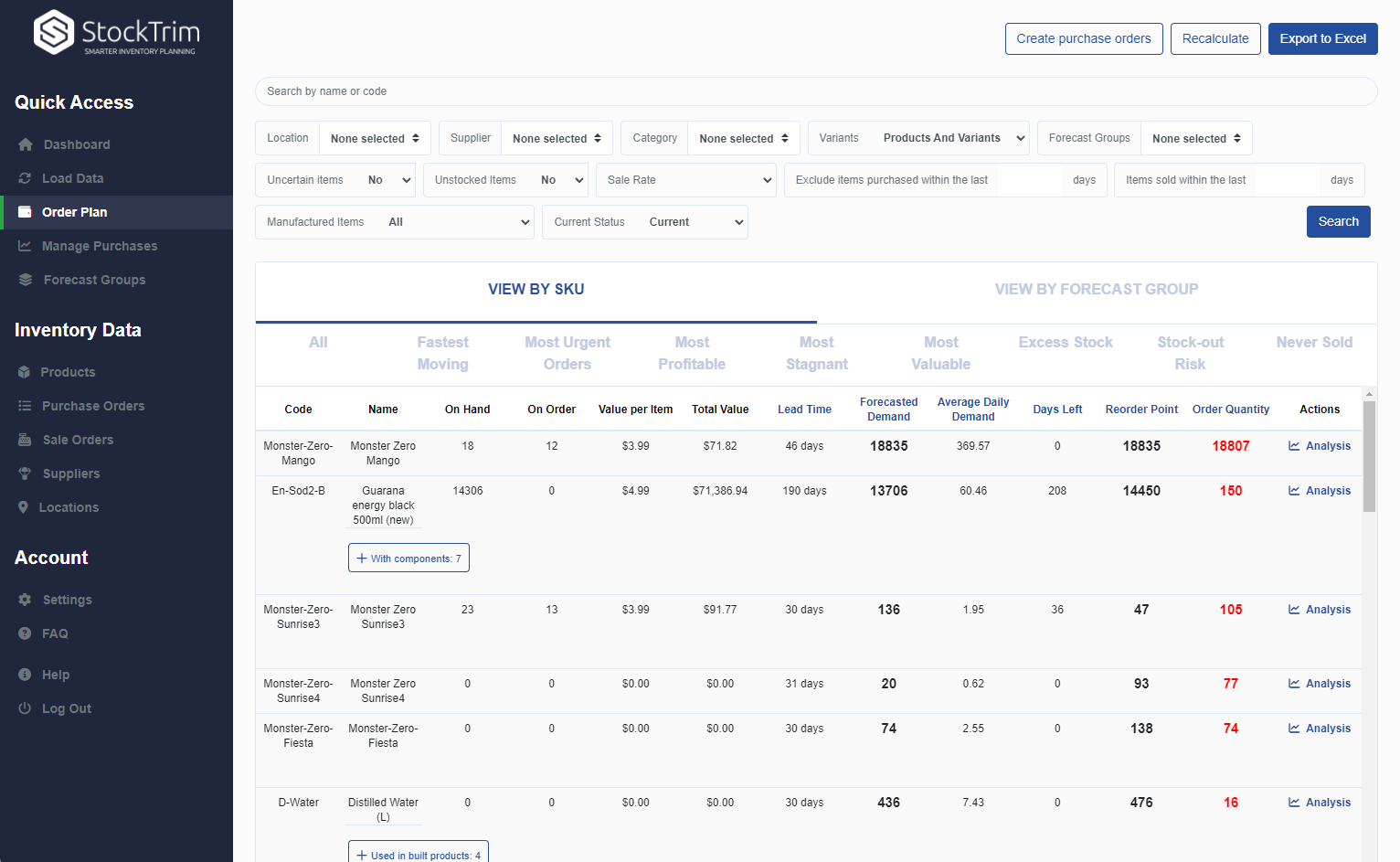
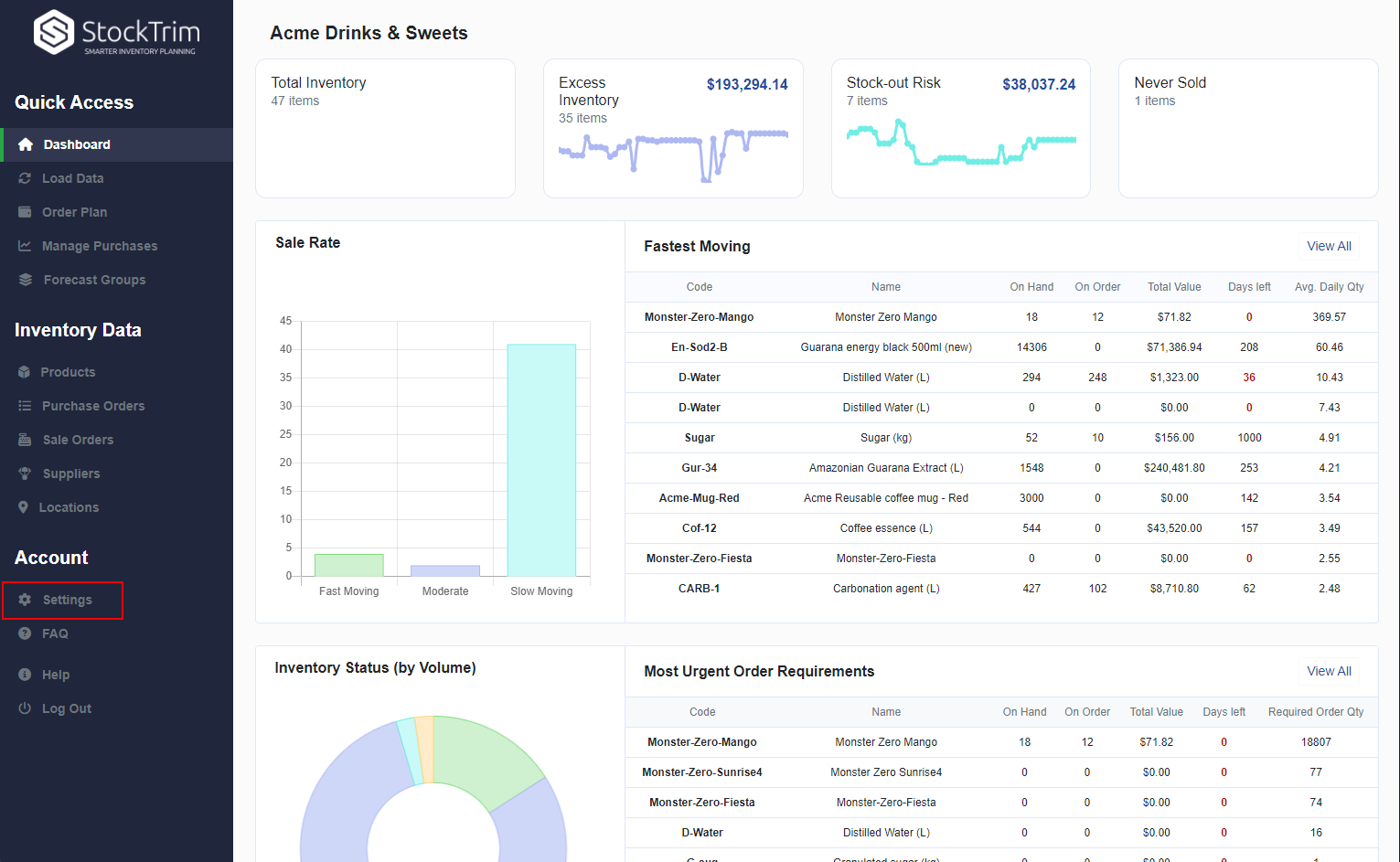
On the dashboard you will see how many products you are overstocked or understocked with, as well as the related costs. Click, 'See my plan' to see the optimal reorder points and suggested order quantities to save you these costs.
Step 4: Demand Analysis
On each product, you can select the 'i' icon to bring up the demand analysis. See your trends, and see how the forecasts are calculated so you can oversee the results to have confidence they're correct.
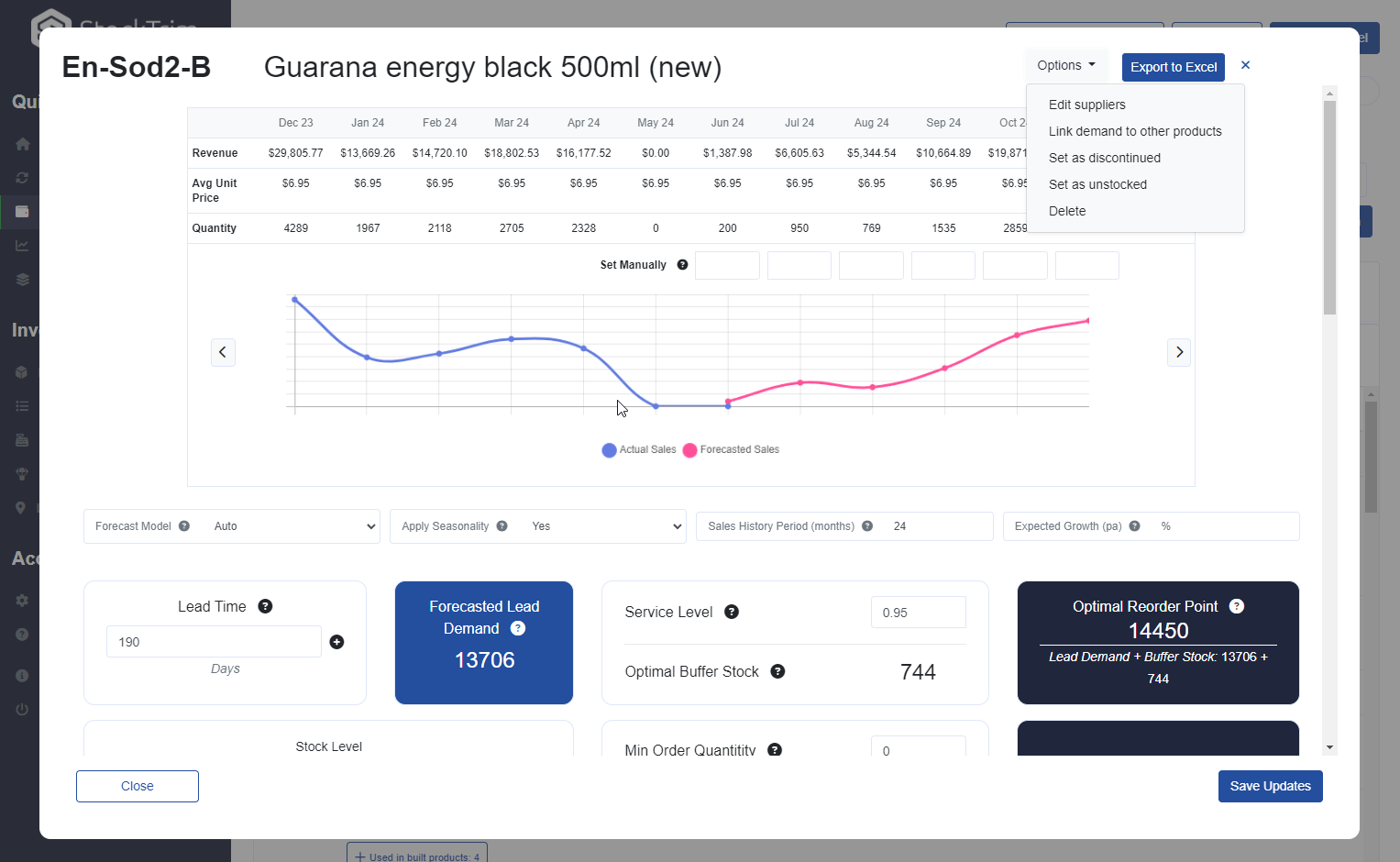
Step 5: Global Settings
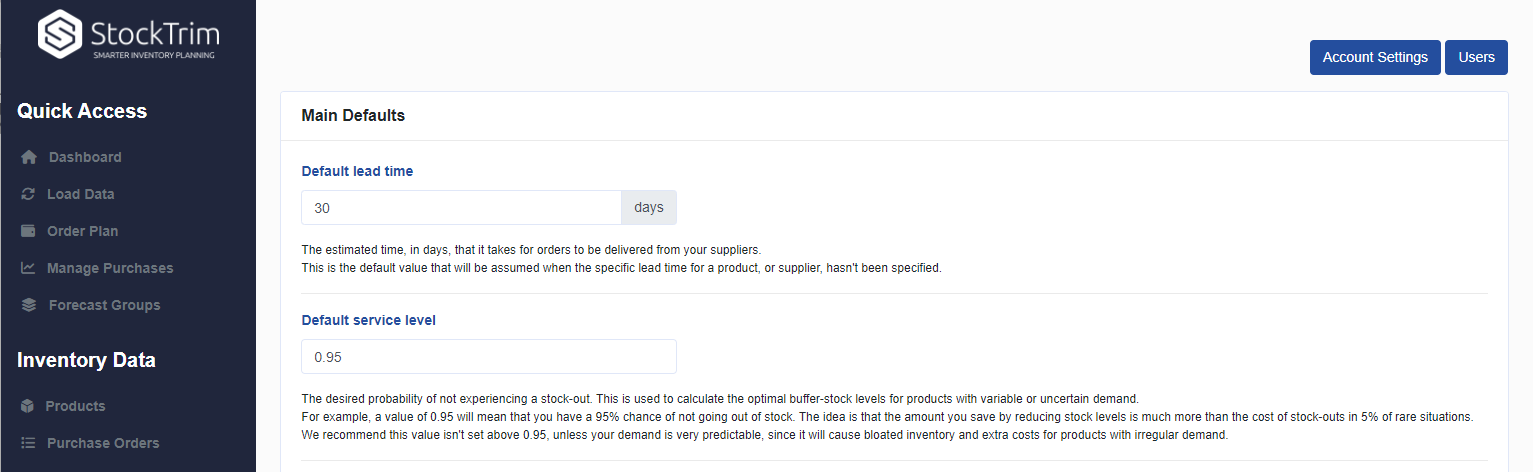
Click the settings wheel to set the lead time and service level. Make sure that the lead time is set so that you have enough stock to cover the time between when you place the orders with your suppliers and when they arrive.
Step 6: Create your purchase orders in Cin7 Core
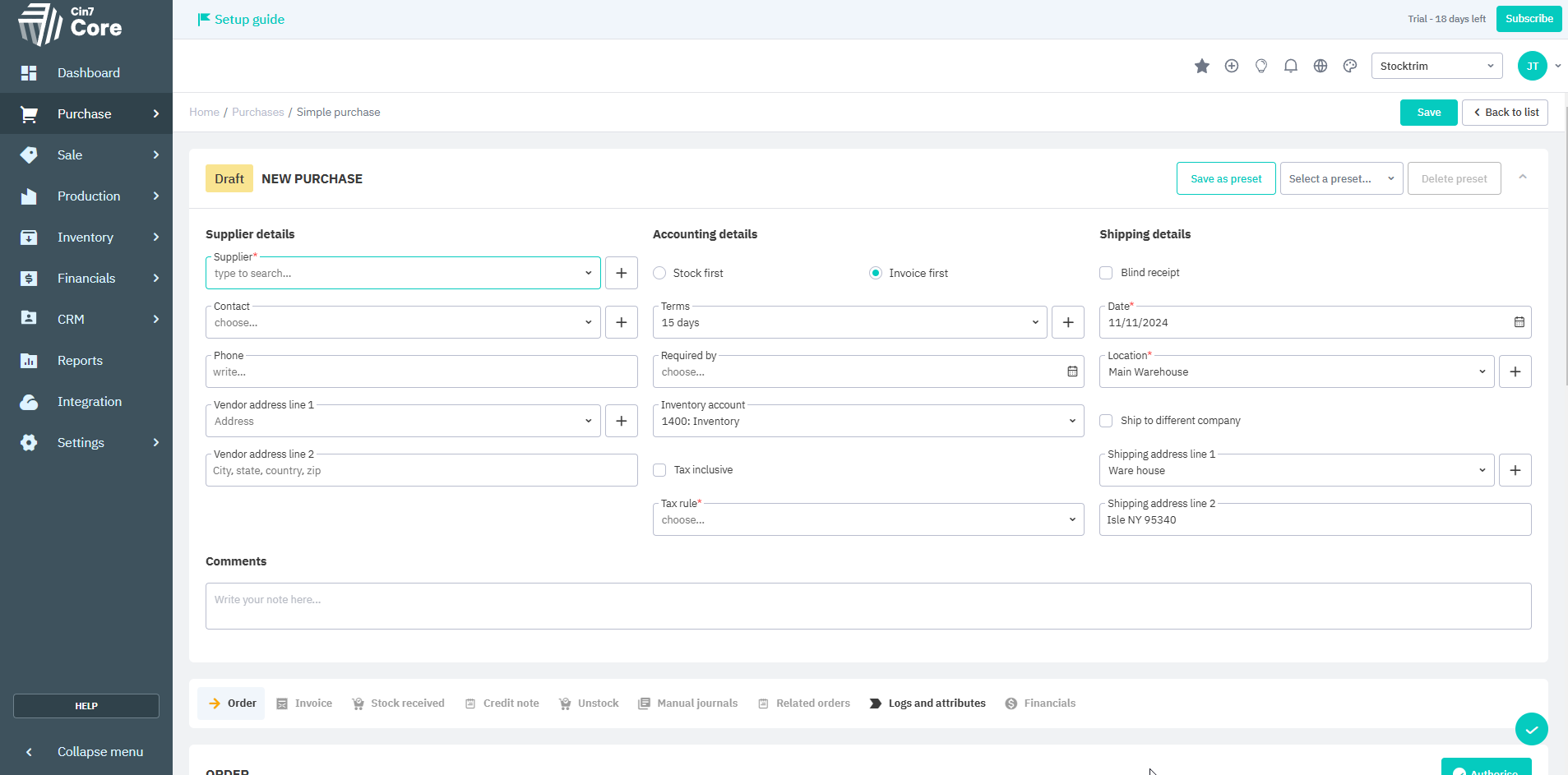
To make your savings, take StockTrim's suggested order quantites and place purchase orders for your under-stocked products. You should regularly reload your data from Cin7 Core into StockTrim so that your inventory analysis remains up to date and you're never caught short.
General FAQ's and Knowledge base
To see frequently asked questions and lots of useful help material please check out our
knowledge base
Api Instructions and Documentation
Send Support Request