Step 1: Check NetSuite Data
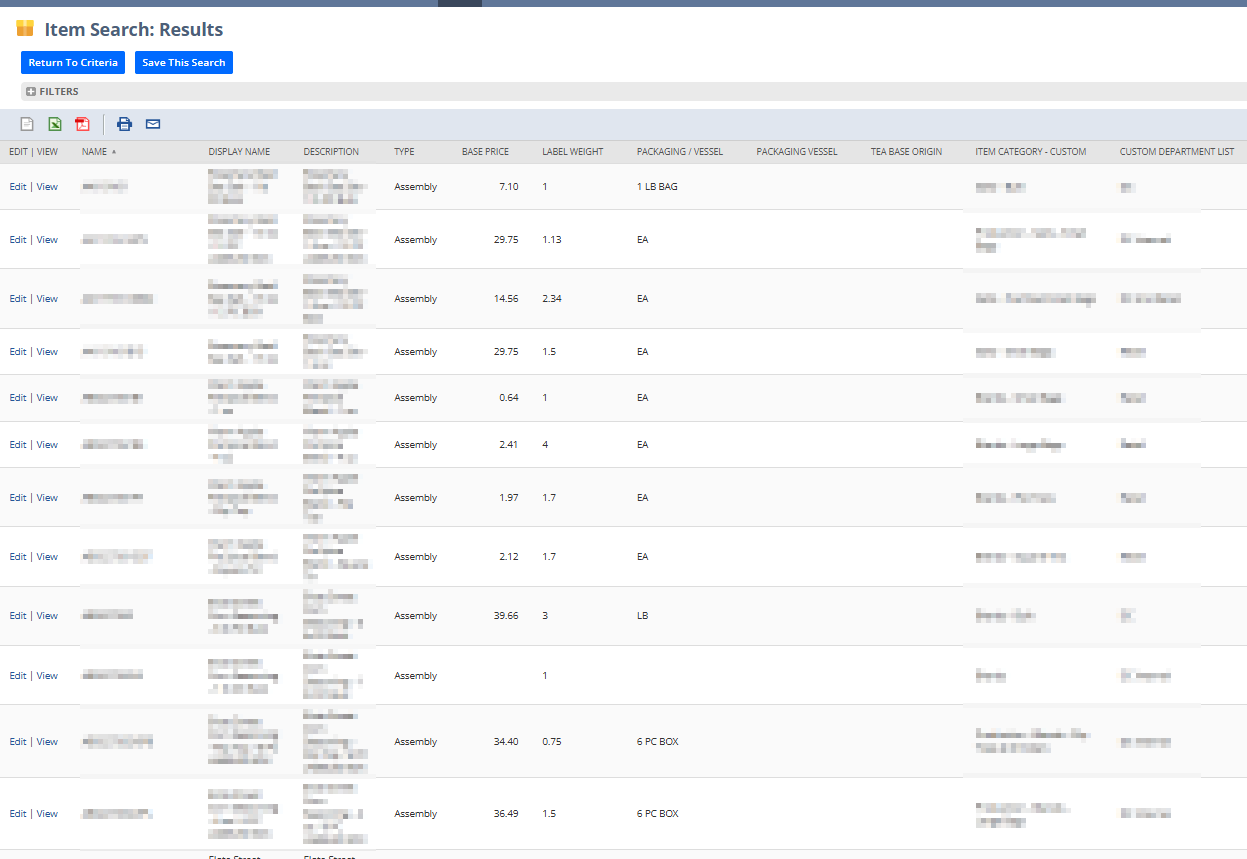
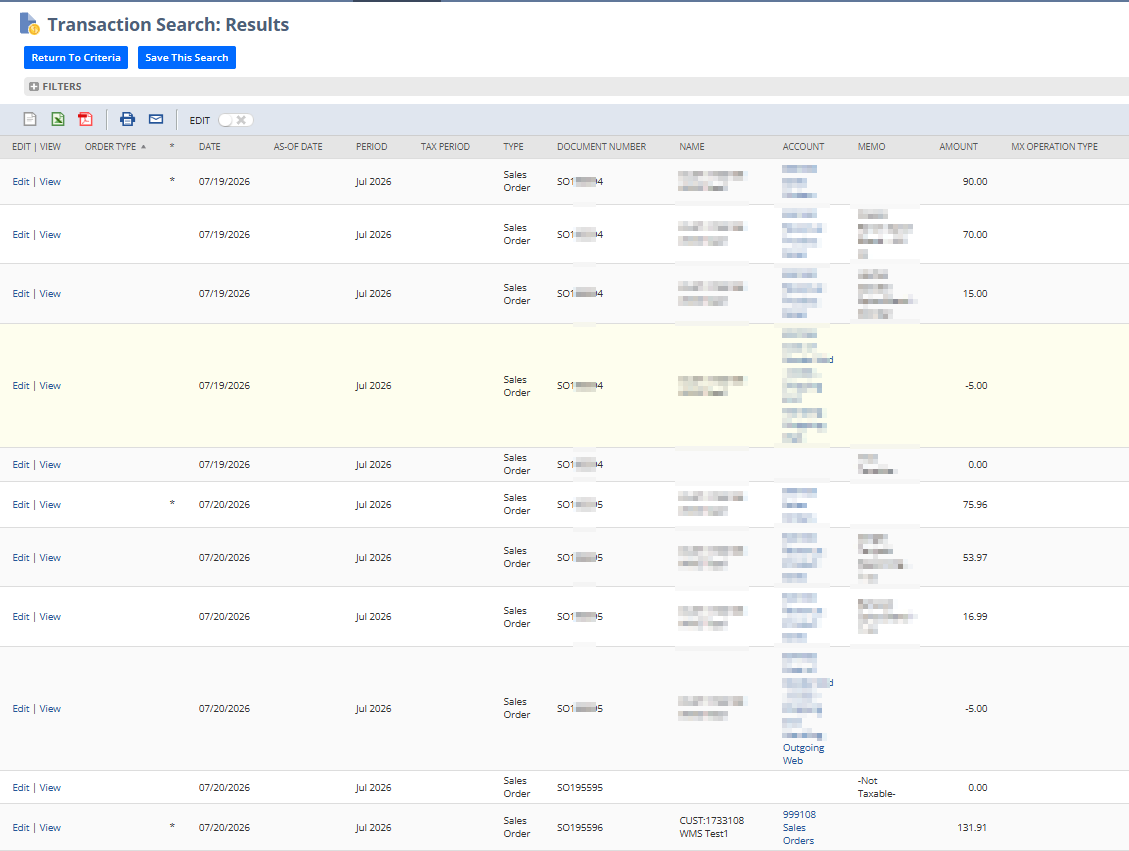
In your NetSuite account, ensure that your inventory and orders history are up to date.
Step 2: Load data into StockTrim
In StockTrim navigate to Load Data and select NetSuite
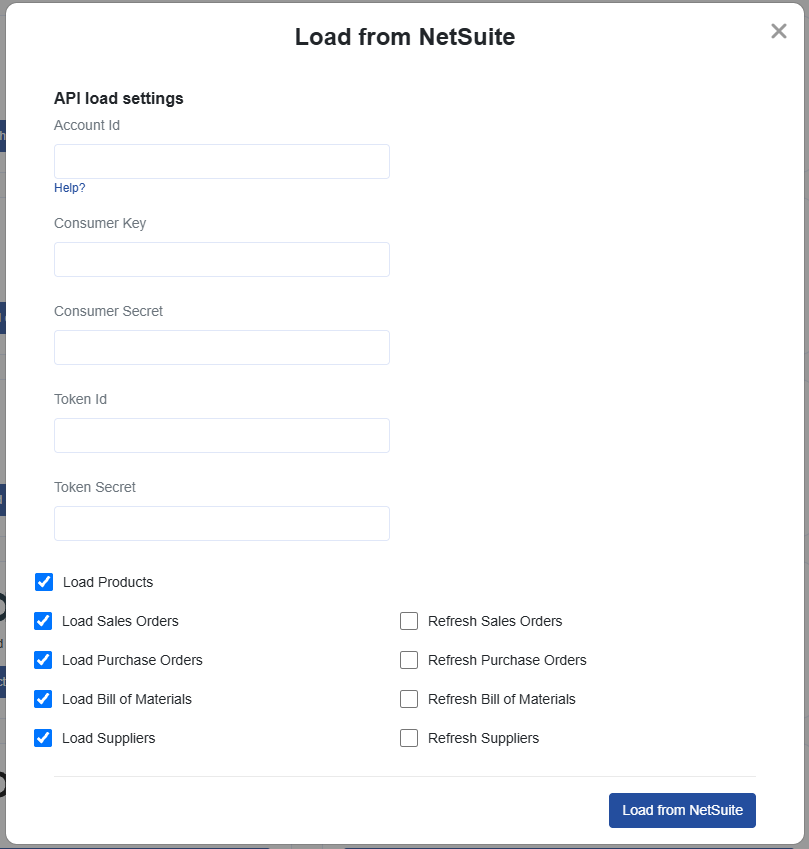
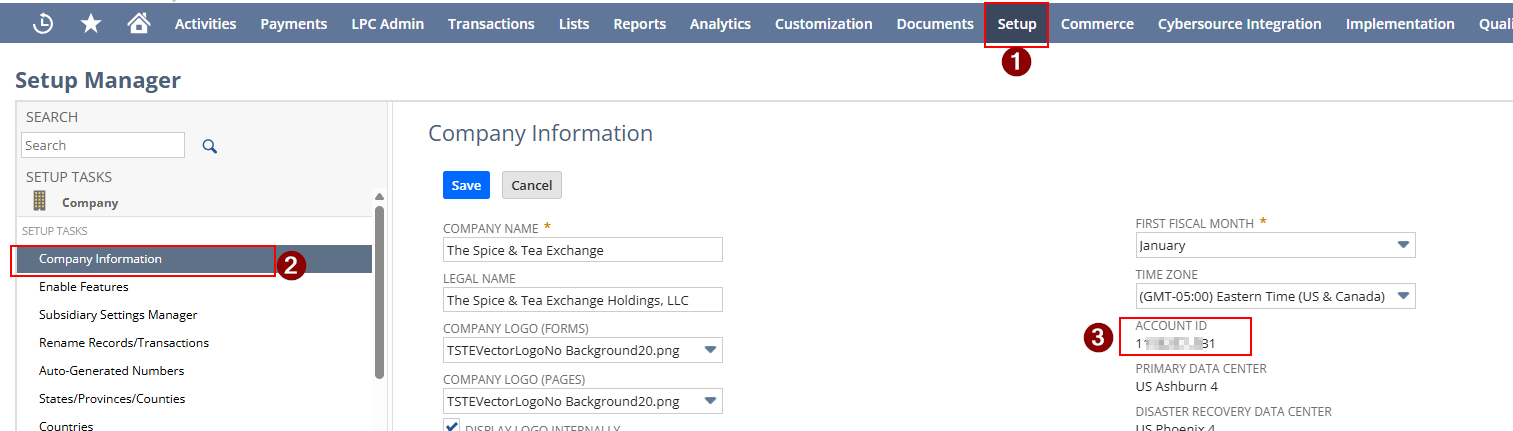
Log into NetSuite and get your Account Id and paste into StockTrim
Next enable Token Based Authentication and REST Web Services
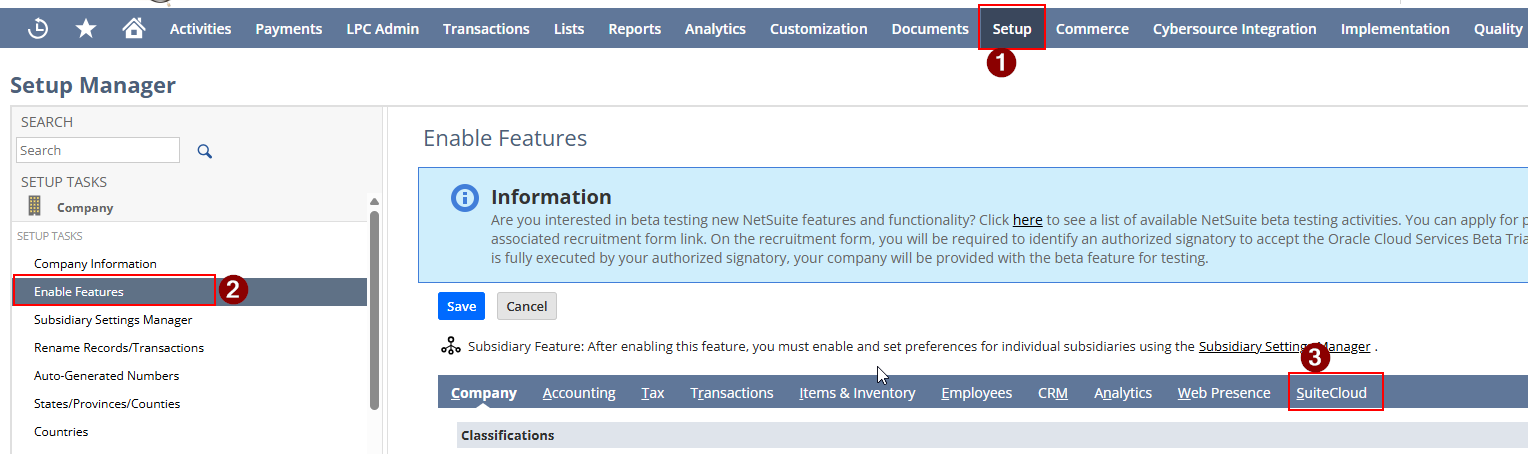

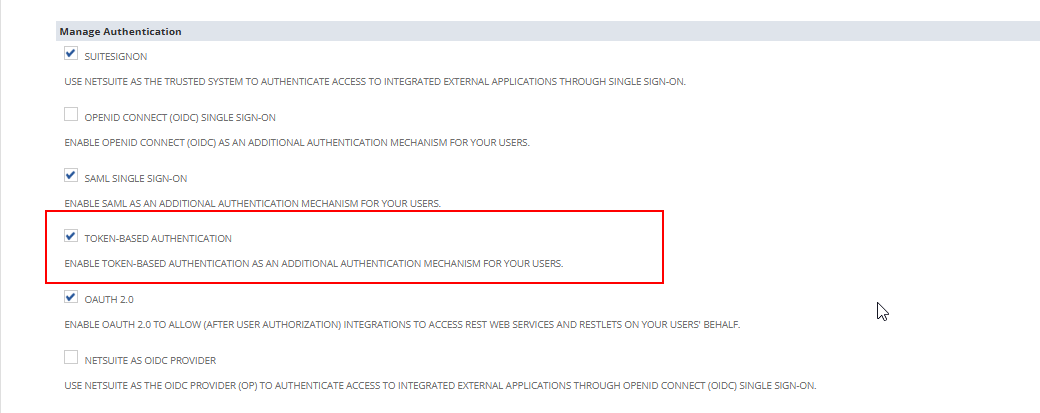
Then Click Save
Create a new Integration
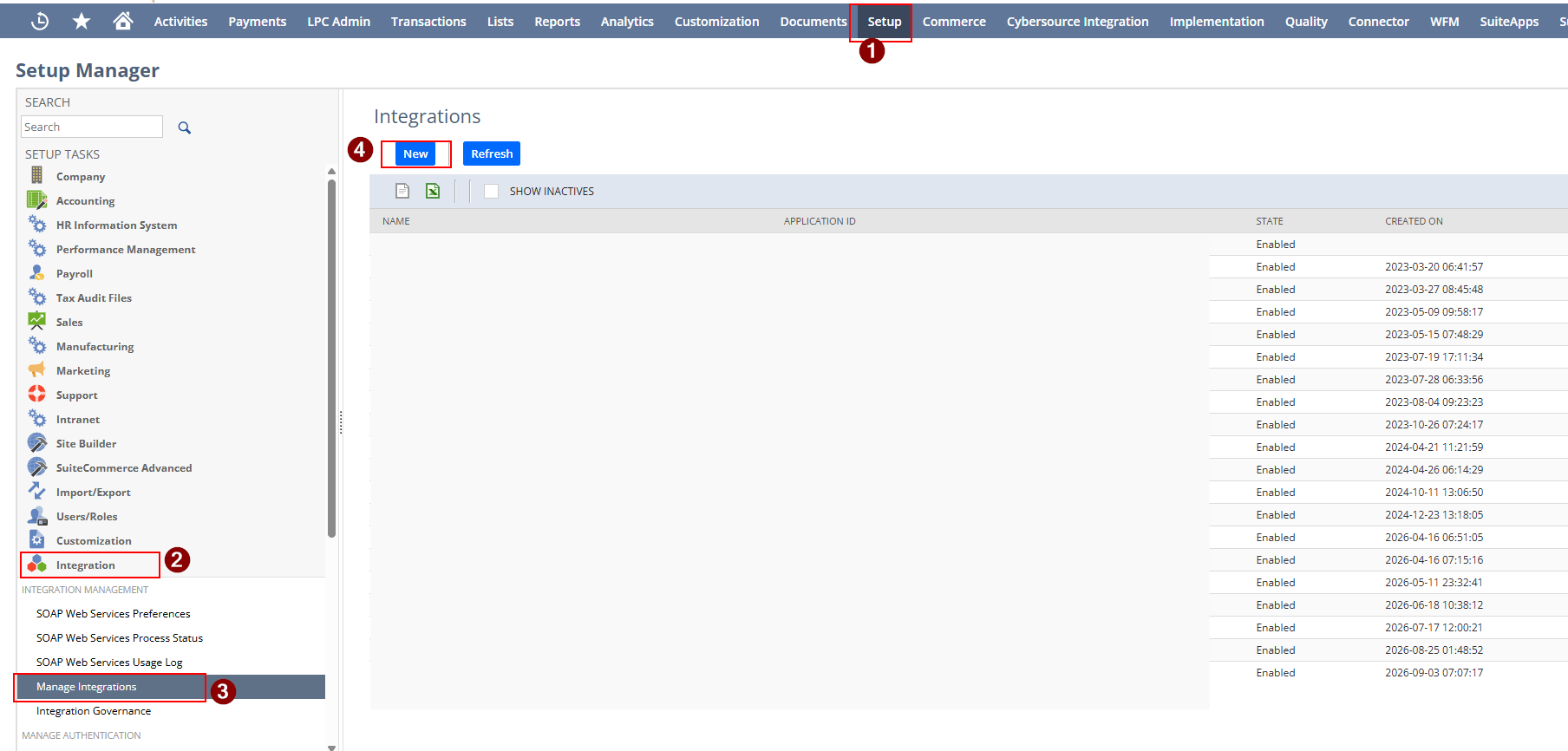
Confirgure the new setup the same as below
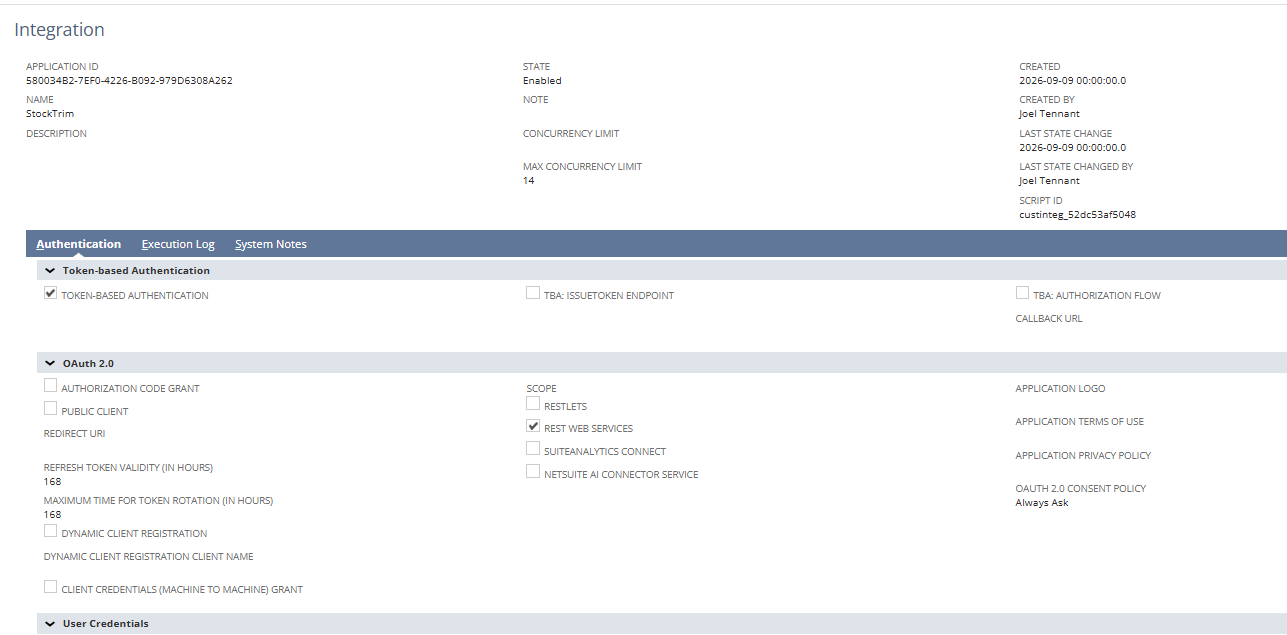
Then Click Save and copy the Consumer Key and Conusmer Secret and paste into StockTrim
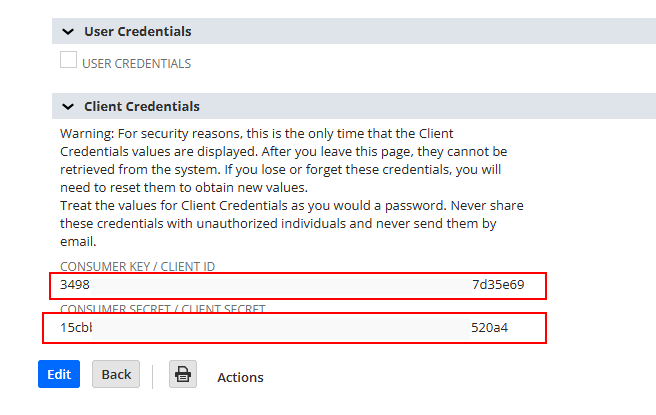
Create a new Integration
Confirgure the new setup the same as below
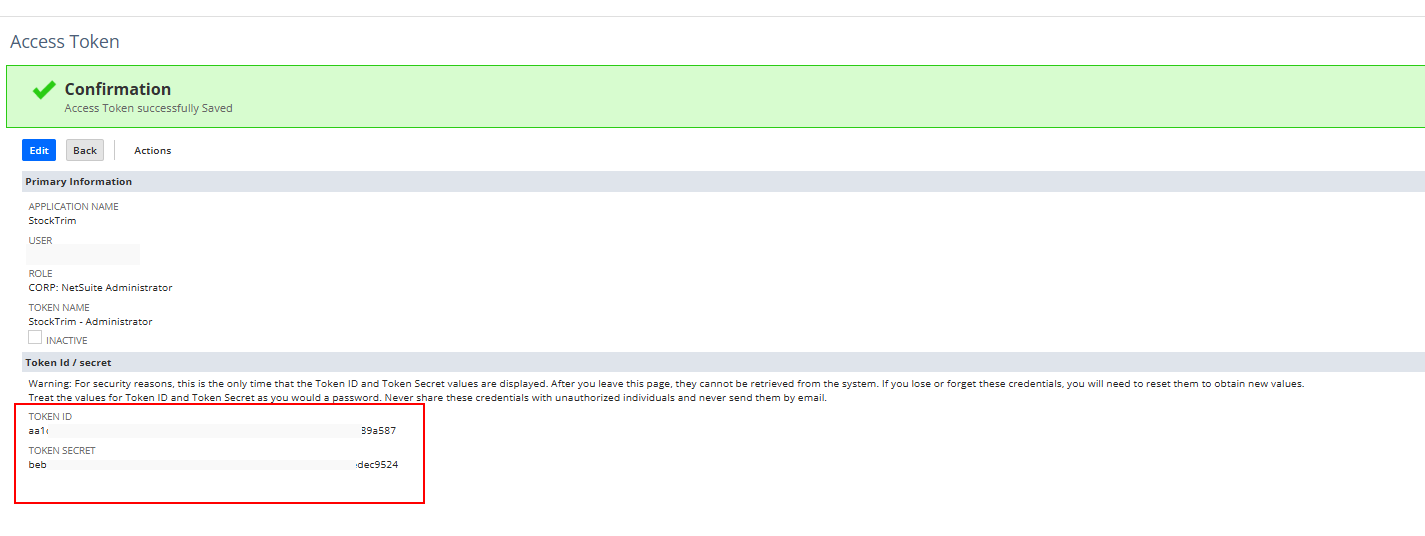
Configure a new access token
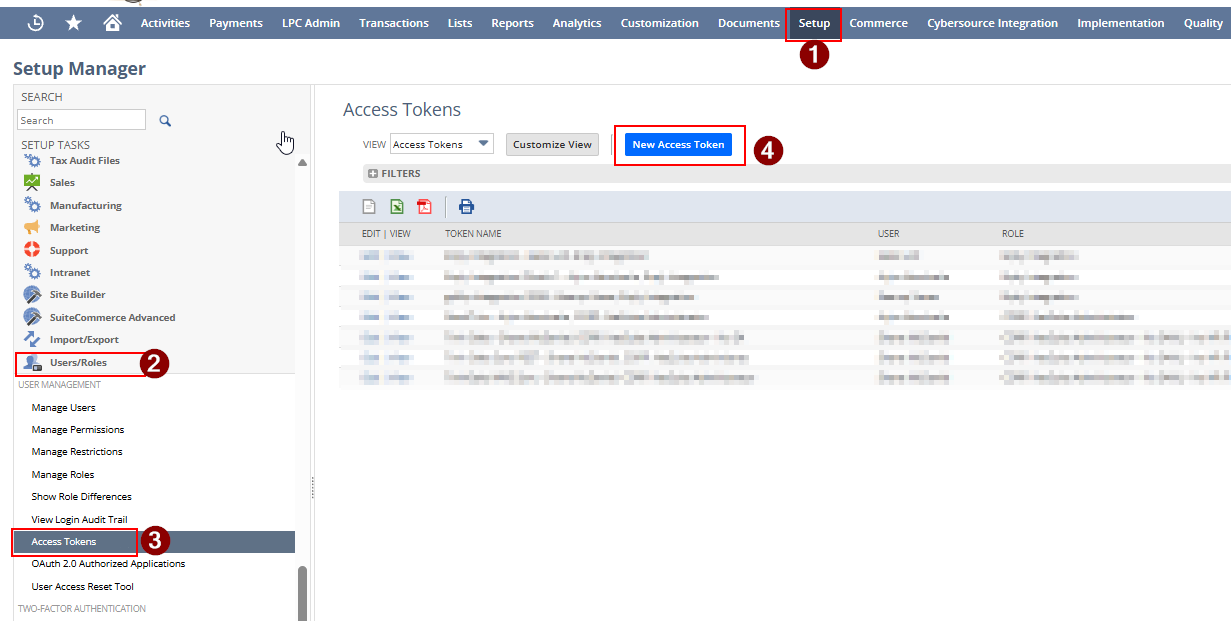
Select StockTrim from the earlier integration you created. Then select a user and role that has the following access
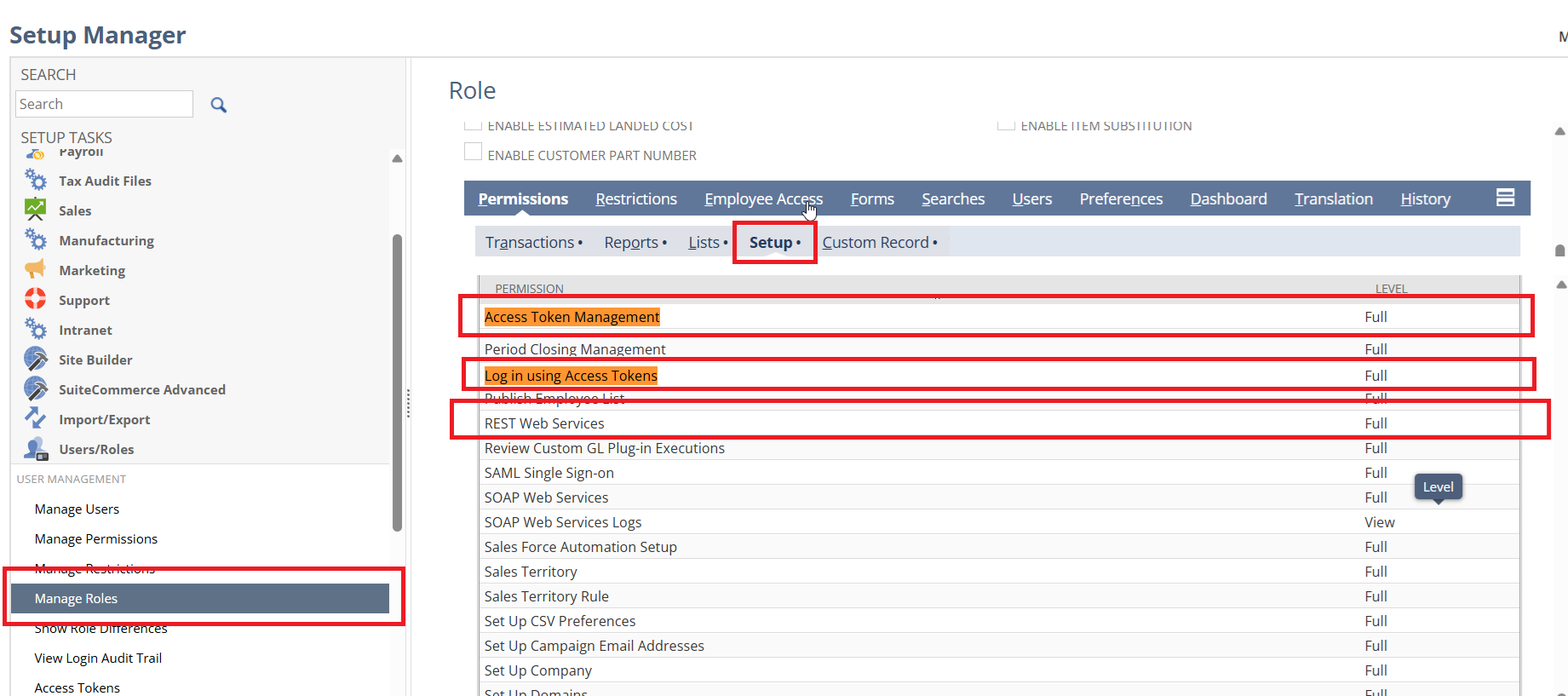
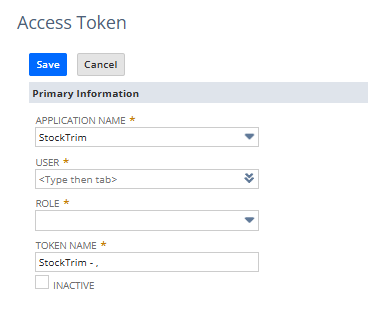
Click Save then copy the Token Id and Token Secret and paste into StockTrim
Then click Load from NetSuite
Step 3: Inventory status and order plans
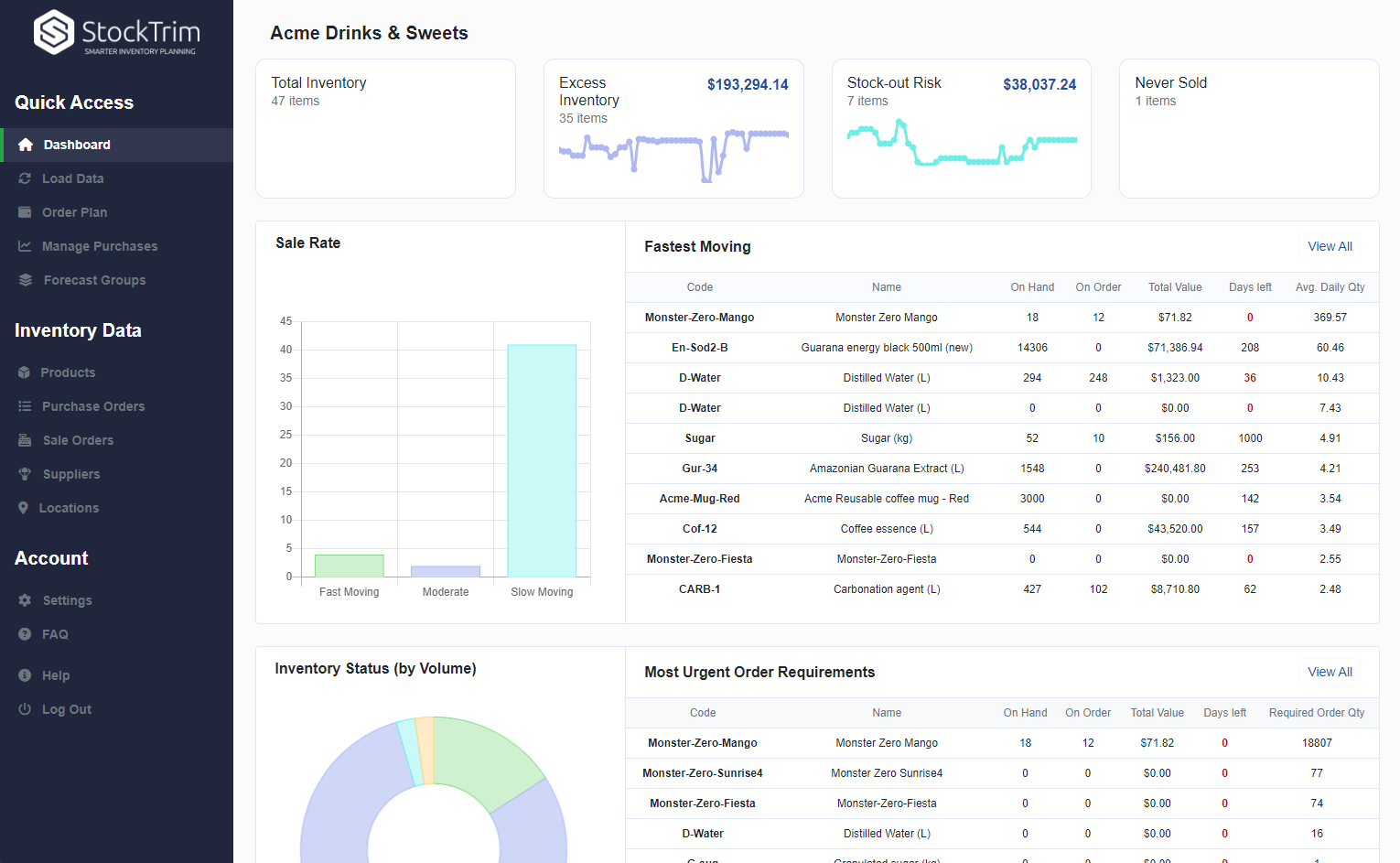
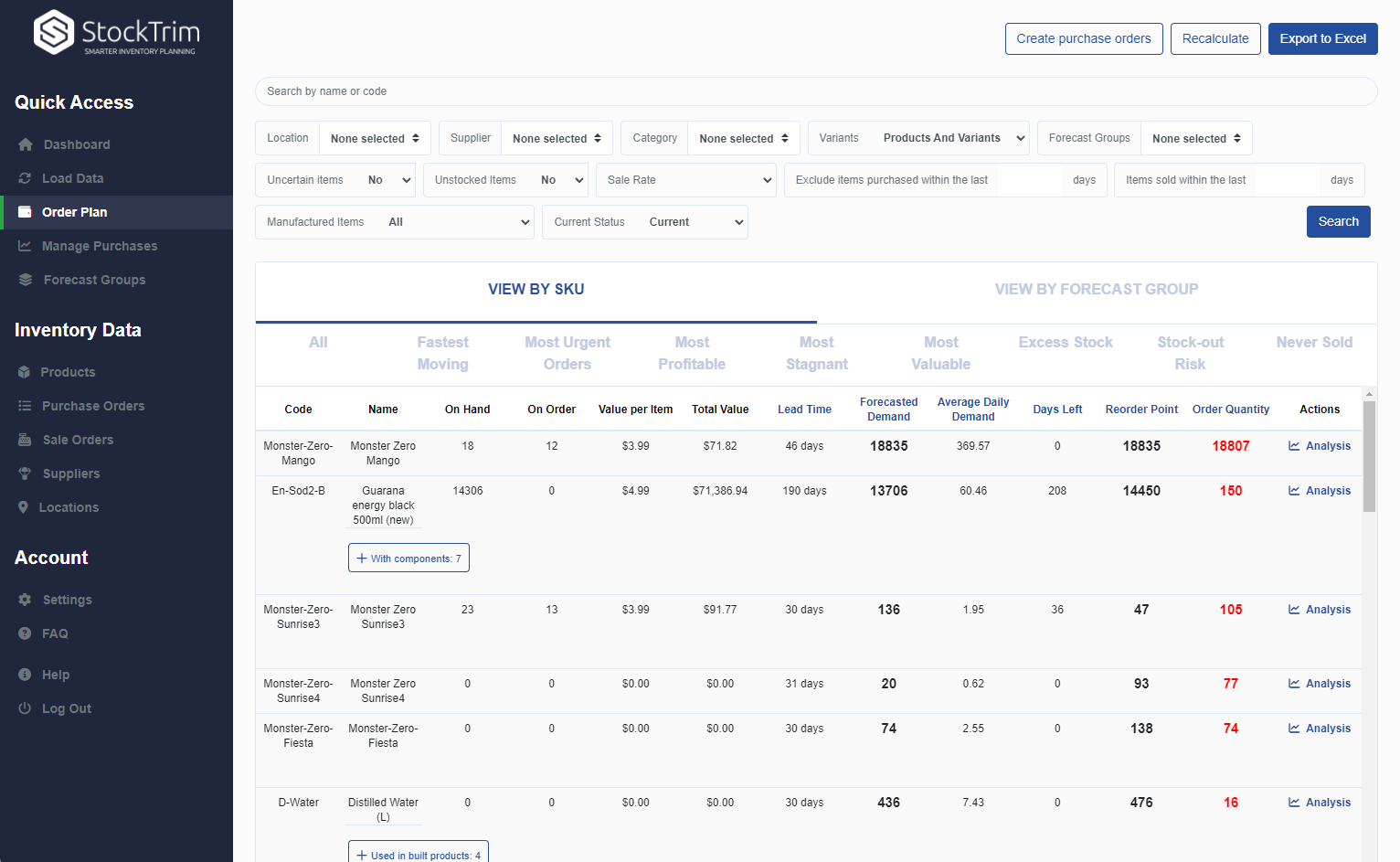
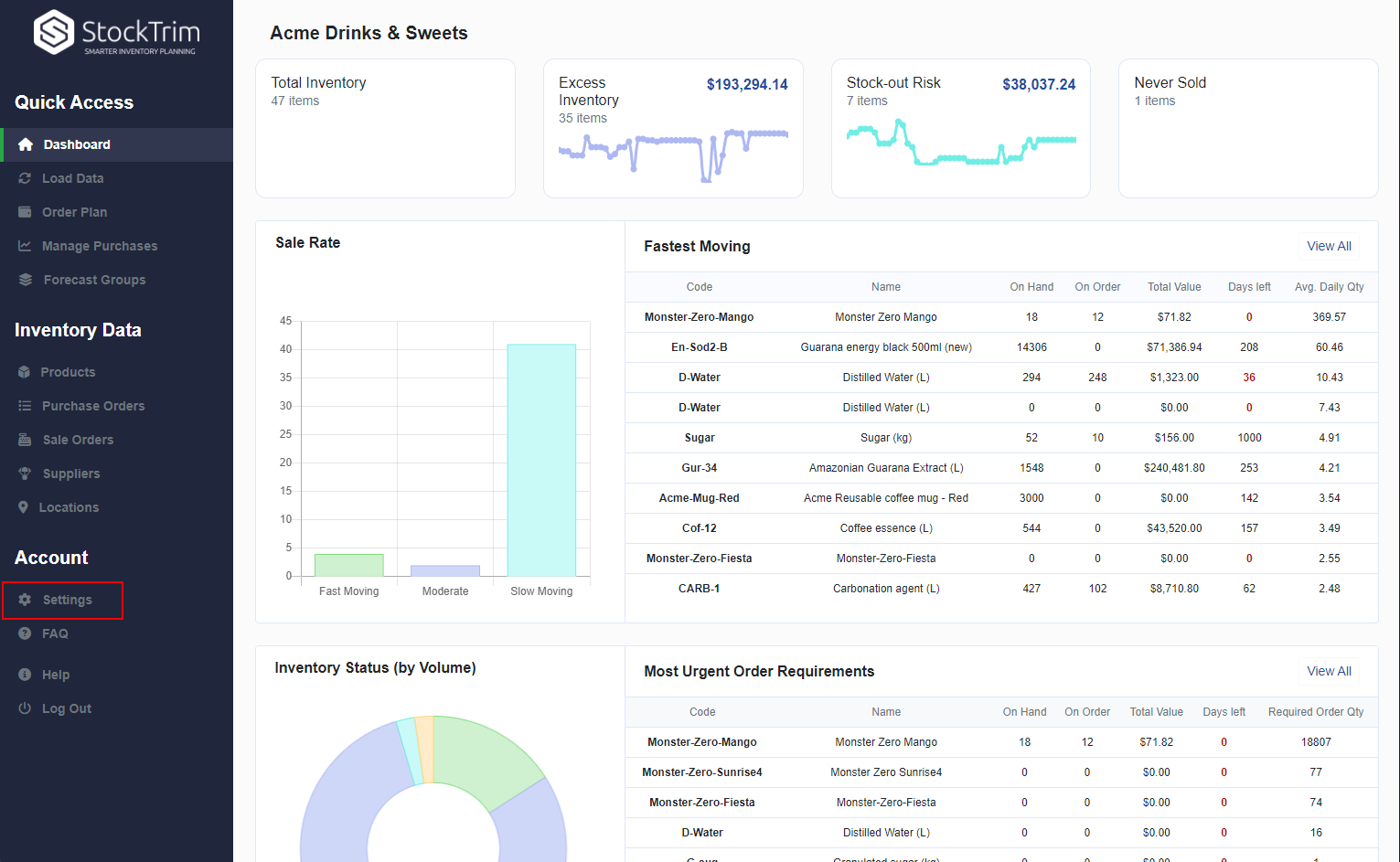
On the dashboard you will see how many products you are overstocked or understocked with, as well as the related costs. Click, 'See my plan' to see the optimal reorder points and suggested order quantities to save you these costs.
Step 4: Demand Analysis
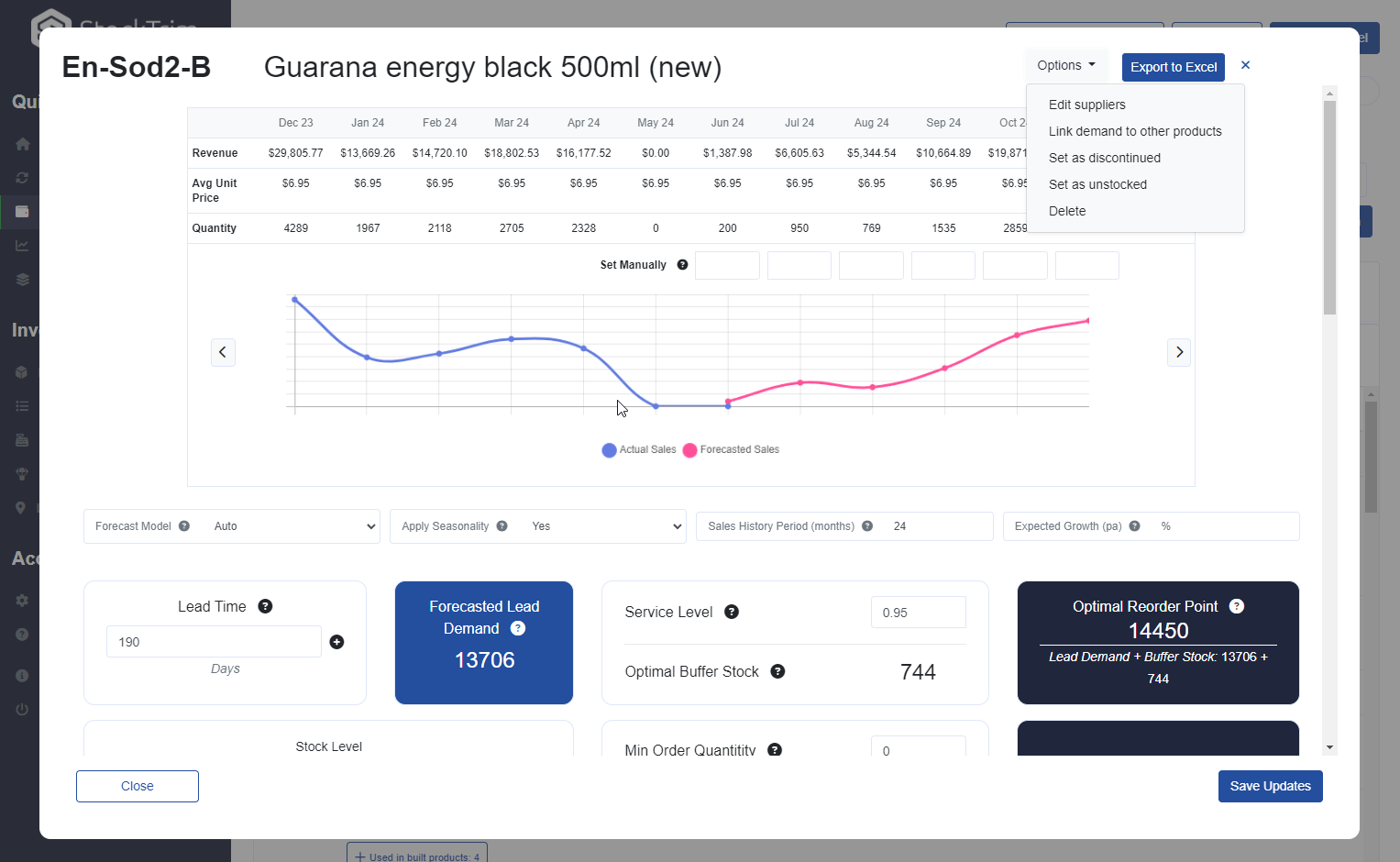
On each product, you can select the 'i' icon to bring up the demand analysis. See your trends, and see how the forecasts are calculated so you can oversee the results to have confidence they're correct.
Step 5: Global Settings
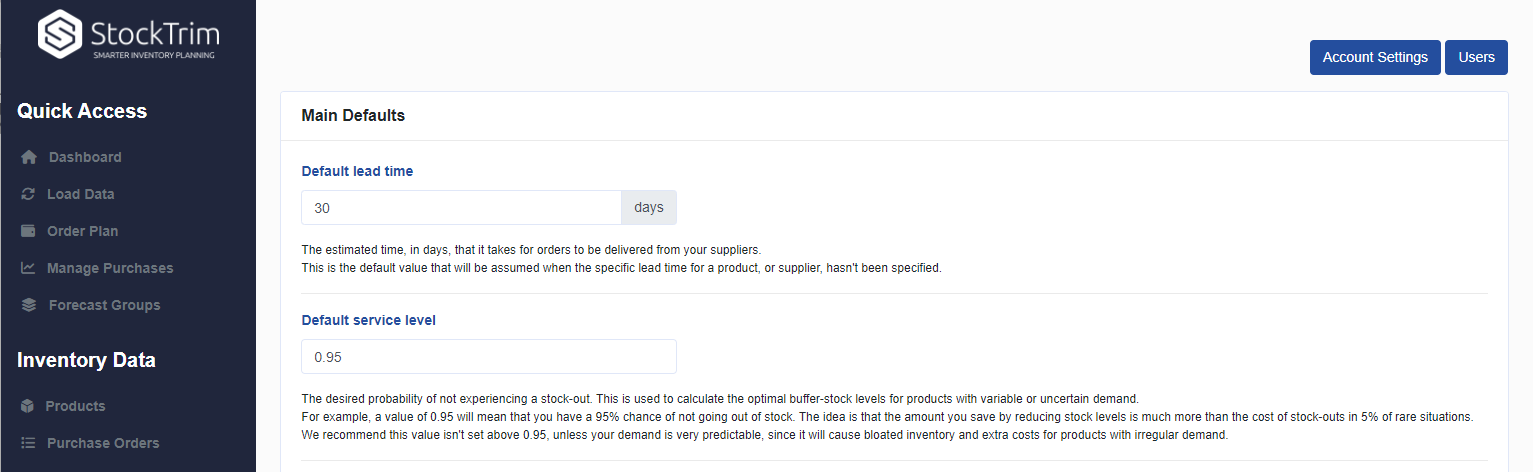
Click the settings wheel to set the lead time and service level. Make sure that the lead time is set so that you have enough stock to cover the time between when you place the orders with your suppliers and when they arrive.
General FAQ's and Knowledge base
To see frequently asked questions and lots of useful help material please check out our
knowledge base
Api Instructions and Documentation
Send Support Request