Step 1: Check WooCommerce Data
In your WooCommerce account, ensure that your products and sales order history are up to date.
It helps if your inventory is tracked with current stock levels set, and pricing data up to date.
It helps if your inventory is tracked with current stock levels set, and pricing data up to date.
Step 2: Load data into StockTrim
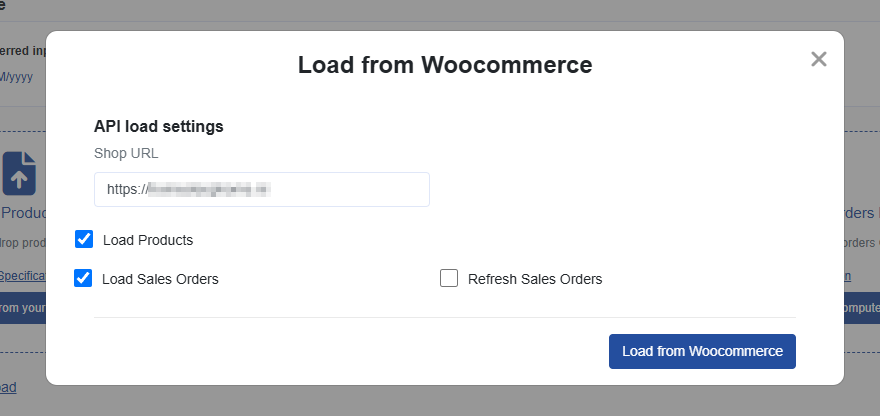
In StockTrim navigate to Load Data and select WooCommerce and enter your WooCommerce shop URL
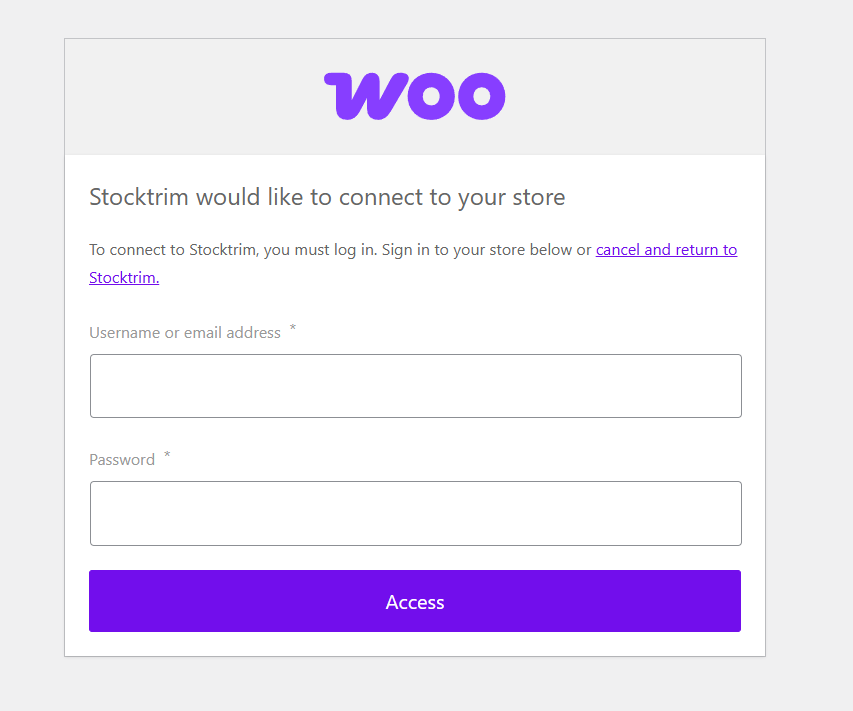
You will be then navigated to WooCommerce to login with your WooCommerce credentials. The the sync will begin
Step 3: Inventory status and order plans
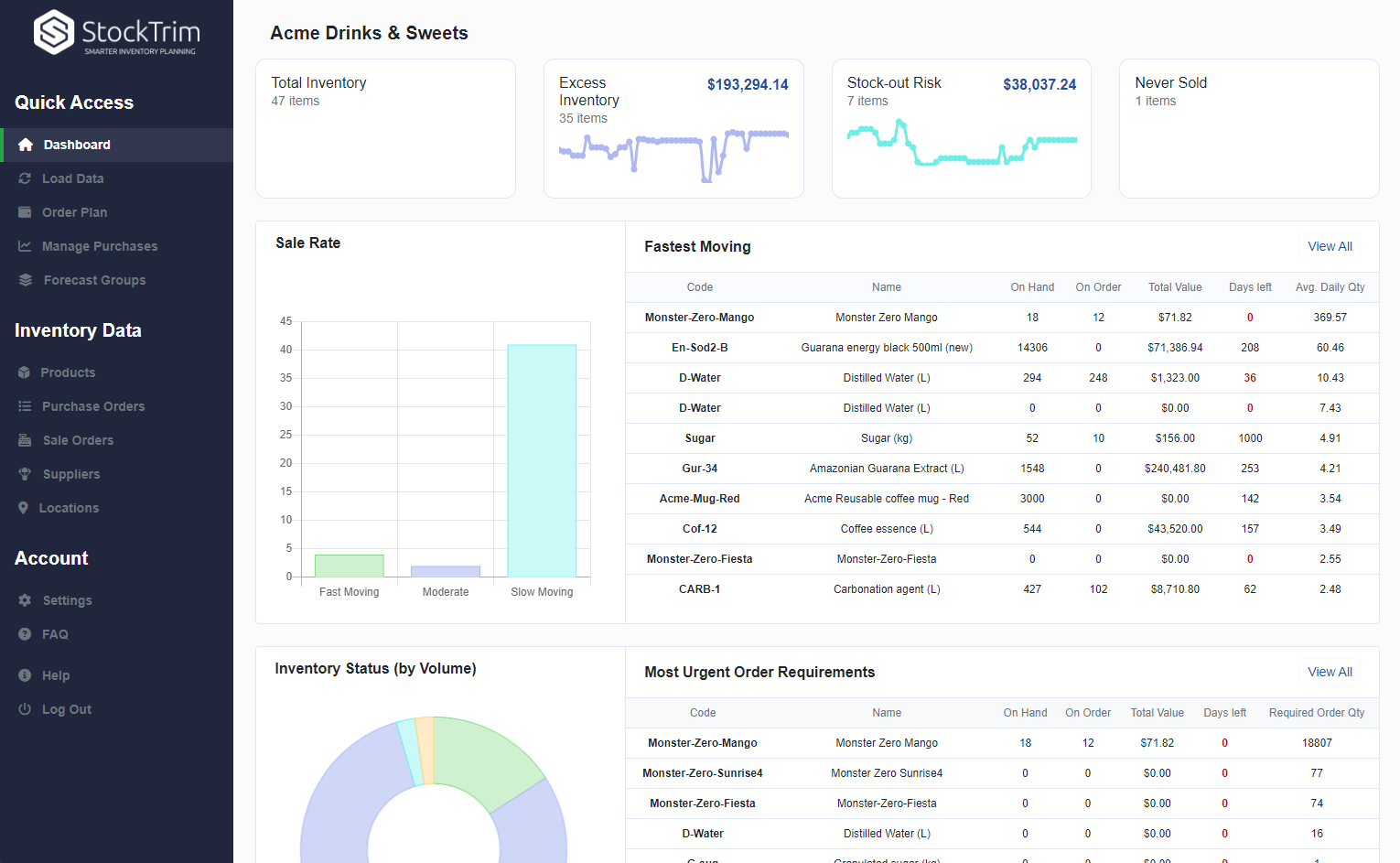
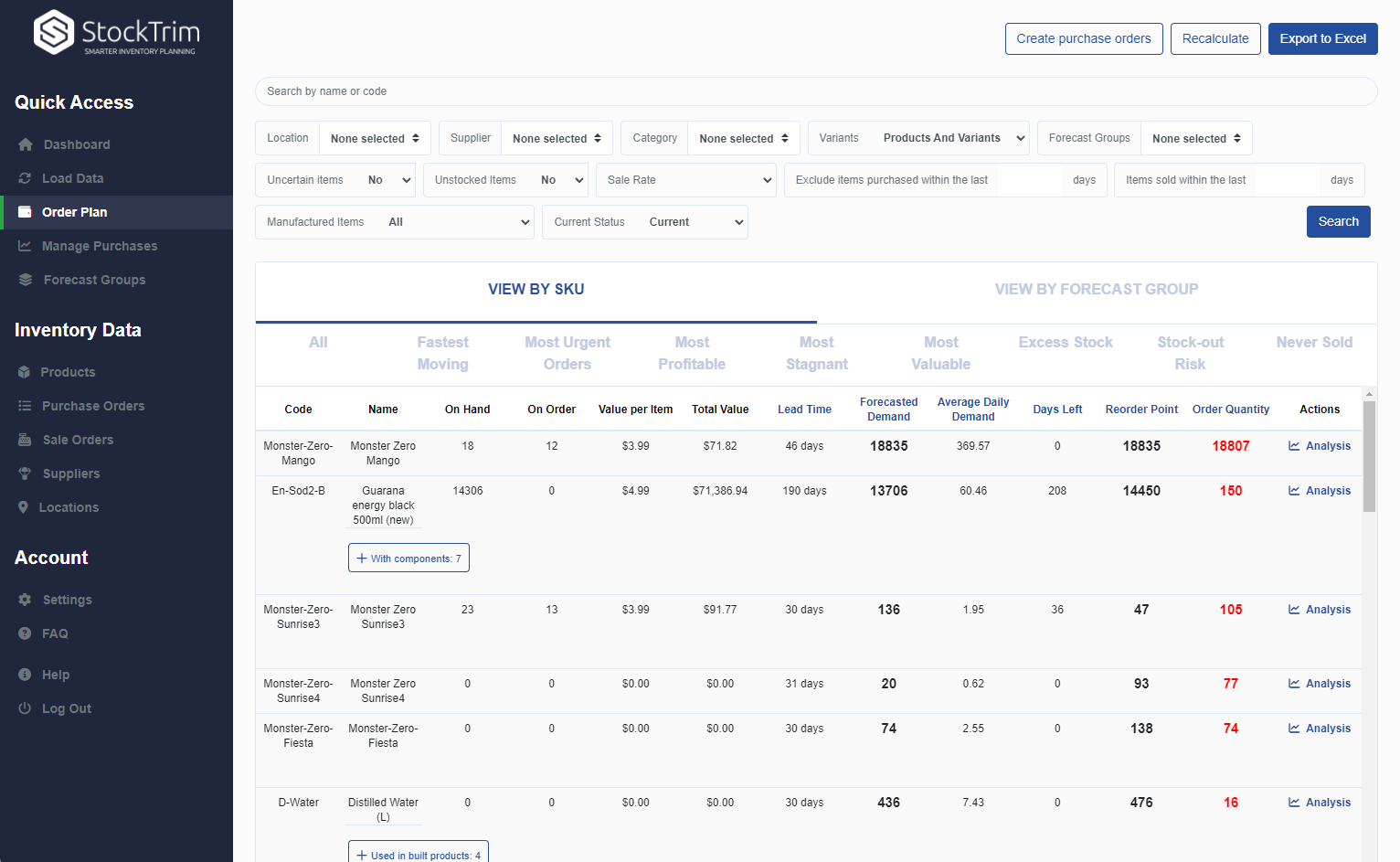
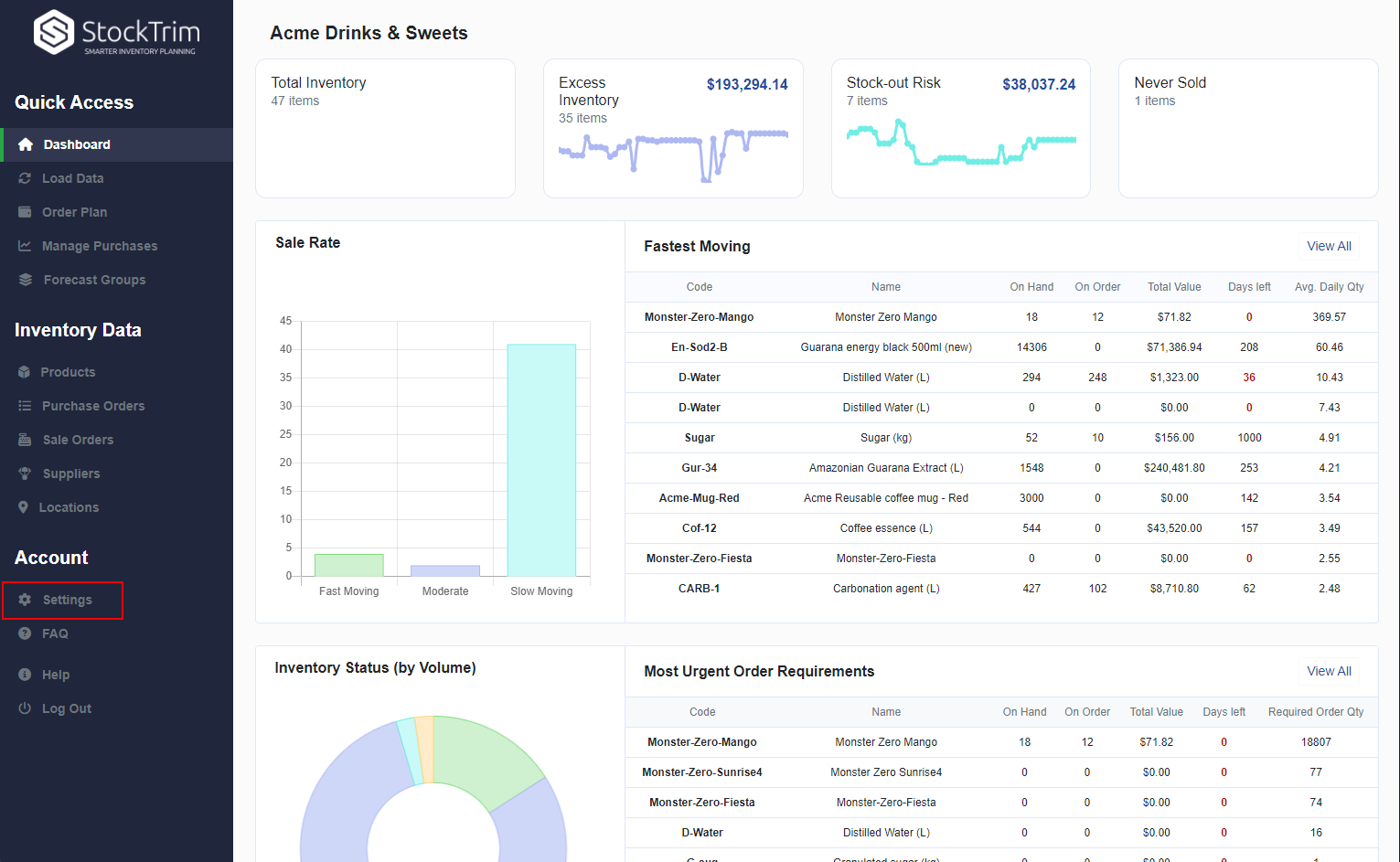
On the dashboard you will see how many products you are overstocked or understocked with, as well as the related costs. Click, 'See my plan' to see the optimal reorder points and suggested order quantities to save you these costs.
Step 4: Demand Analysis
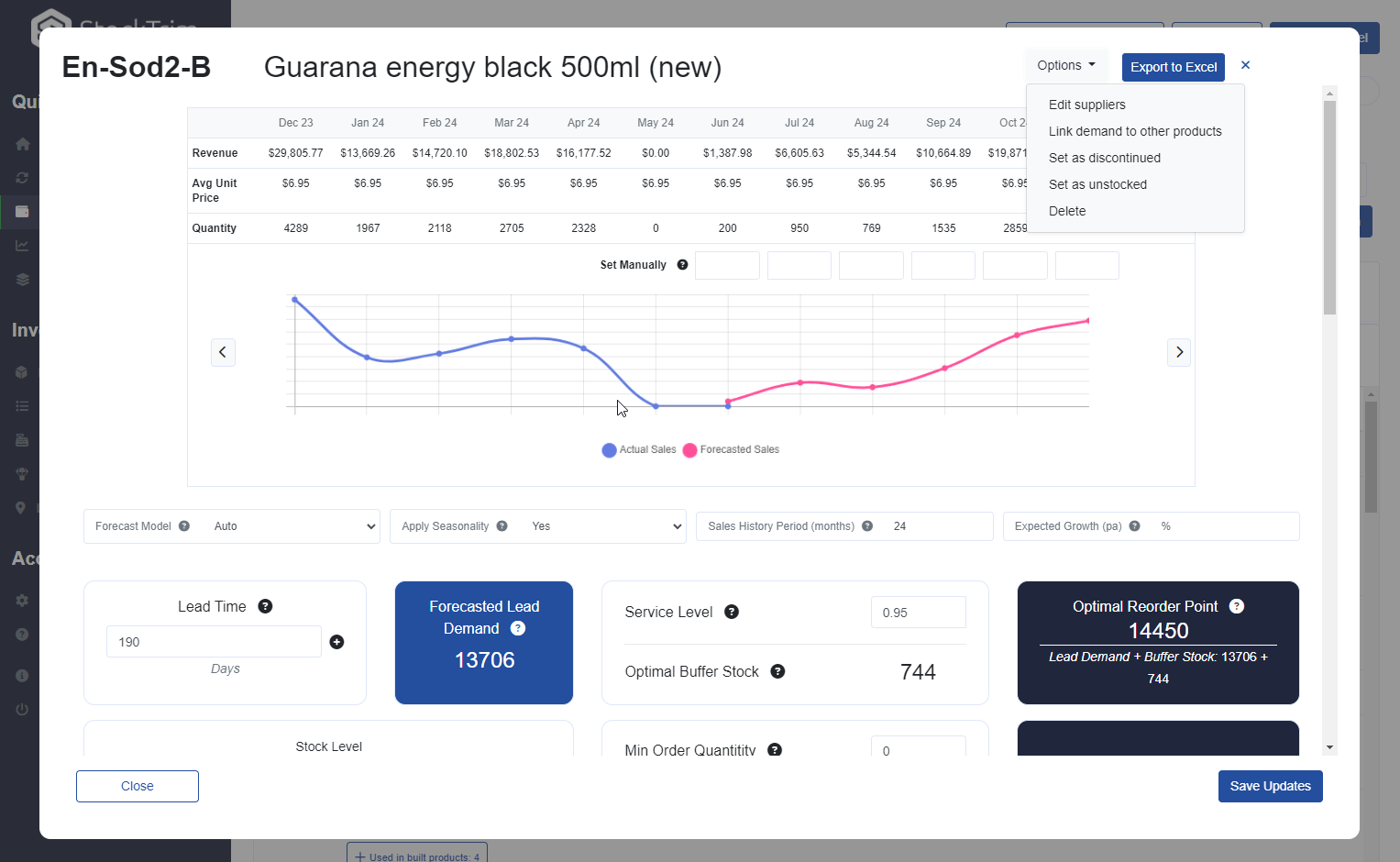
On each product, you can select the 'i' icon to bring up the demand analysis. See your trends, and see how the forecasts are calculated so you can oversee the results to have confidence they're correct.
Step 5: Global Settings
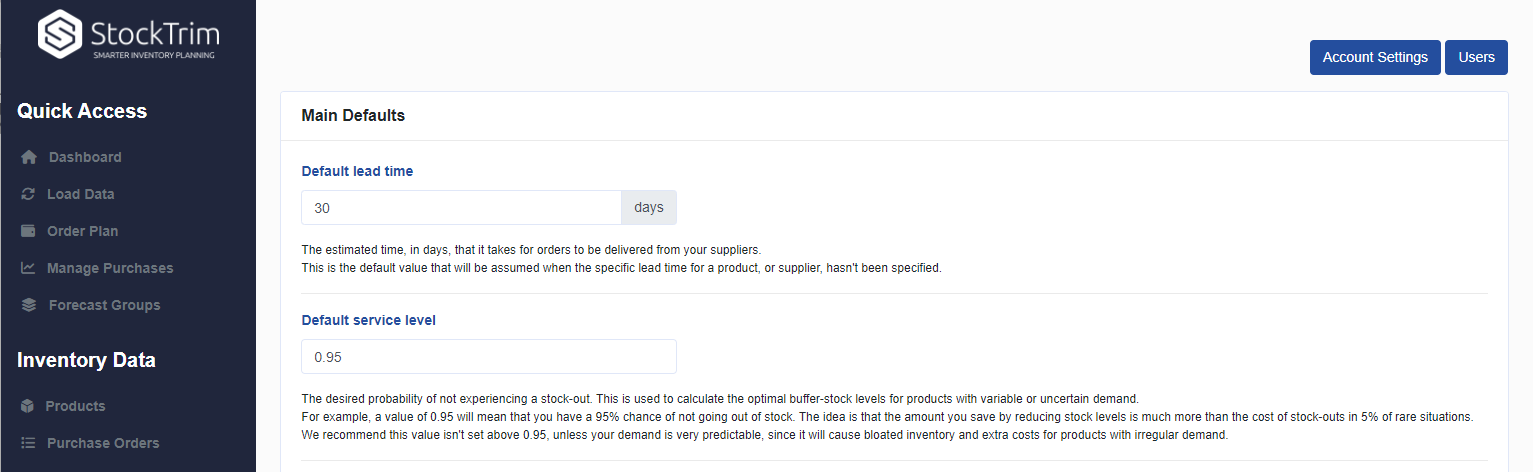
Click the settings wheel to set the lead time and service level. Make sure that the lead time is set so that you have enough stock to cover the time between when you place the orders with your suppliers and when they arrive.
General FAQ's and Knowledge base
To see frequently asked questions and lots of useful help material please check out our
knowledge base
Api Instructions and Documentation
Send Support Request